
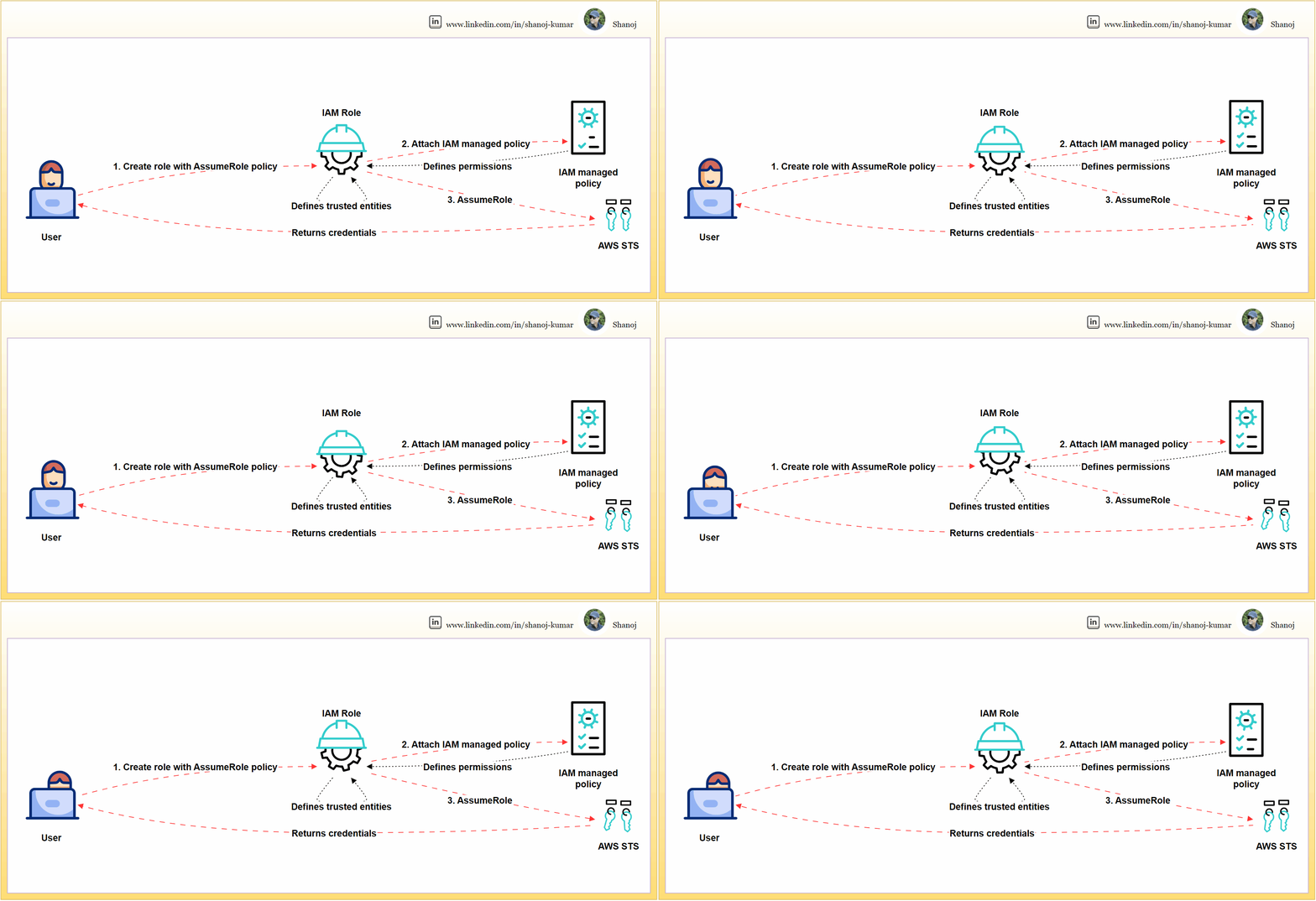
IAM roles are crucial for access management in AWS. This article provides a step-by-step walkthrough for creating a user-specific IAM role, attaching necessary policies, and validating for security and functionality.
Step 1: Compose a JSON file named assume-role-policy.json.
This policy explicitly defines the trusted entities that can assume the role, effectively safeguarding it against unauthorized access.
{
  "Version": "2012-10-17",
  "Statement": [
    {
      "Effect": "Allow",
      "Principal": {
        "AWS": "PRINCIPAL_ARN"
      },
      "Action": "sts:AssumeRole"
    }
  ]
}
This policy snippet should be modified by replacing PRINCIPAL_ARN it with the actual ARN of the user or service that needs to assume the role. The ARN can be obtained programmatically, as shown in the next step.
Step 2: Establishing the IAM Role via AWS CLI
The CLI is a direct and scriptable interface for AWS services, facilitating efficient role creation and management.
# Retrieve the ARN for the current user and store it in a variable
PRINCIPAL_ARN=$(aws sts get-caller-identity --query Arn --output text)

# Replace the placeholder in the policy template and create the actual policy
sed -i "s|PRINCIPAL_ARN|$PRINCIPAL_ARN|g" assume-role-policy.json

# Create the IAM role with the updated assume role policy
aws iam create-role --role-name DeveloperRole \
     --assume-role-policy-document file://assume-role-policy.json \
     --query 'Role.Arn' --output text
This command sequence fetches the user’s ARN, substitutes it into the policy document, and then creates the role DeveloperRole with the updated policy.
Step 3: Link the ‘PowerUserAccess’ managed policy to the newly created IAM role.
This policy confers essential permissions for a broad range of development tasks while adhering to the principle of least privilege by excluding full administrative privileges.
# Attach the 'PowerUserAccess' policy to the 'DeveloperRole'
aws iam attach-role-policy --role-name DeveloperRole \
     --policy-arn arn:aws:iam::aws:policy/PowerUserAccess
The command attaches the necessary permissions to the DeveloperRole without conferring overly permissive access.
Assuming the IAM Role
Assume the IAM role to procure temporary security credentials. Assuming a role with temporary credentials minimizes security risks compared to using long-term access keys and confines access to a session’s duration.
# Assume the 'DeveloperRole' and specify the MFA device serial number and token code
aws sts assume-role --role-arn ROLE_ARN \
     --role-session-name DeveloperSession \
     --serial-number MFA_DEVICE_SERIAL_NUMBER \
     --token-code MFA_TOKEN_CODE
The command now includes parameters for MFA, enhancing security. Replace ROLE_ARN the role’s ARN MFA_DEVICE_SERIAL_NUMBER with the serial number of the MFA device and MFA_TOKEN_CODE with the current MFA code.
Validation Checks
Execute commands to verify the permissions of the IAM role.
Validation is essential to confirm that the role possesses the correct permissions and is operative as anticipated.
List S3 Buckets:
# List S3 buckets using the assumed role's credentials
aws s3 ls --profile DeveloperSessionCredentials
This checks the ability to list S3 buckets, verifying that S3-related permissions are correctly granted to the role.
Describe EC2 Instances:
# Describe EC2 instances using the assumed role's credentials
aws ec2 describe-instances --profile DeveloperSessionCredentials
Validates the role’s permissions to view details about EC2 instances.
Attempt a Restricted Action:
# Try listing IAM users, which should be outside the 'PowerUserAccess' policy scope
aws iam list-users --profile DeveloperSessionCredentials
This command should fail, reaffirming that the role does not have administrative privileges.
Note: Replace --profile DeveloperSessionCredentials with the actual AWS CLI profile that has been configured with the assumed role’s credentials. To set up the profile with the new temporary credentials, you’ll need to update your AWS credentials file, typically located at ~/.aws/credentials.
Developers can securely manage AWS resources by creating an IAM role with scoped privileges. This involves meticulously validating the permissions of the role. Additionally, the role assumption process can be fortified with MFA to ensure an even higher level of security.
PlainEnglish.io 🚀
Thank you for being a part of the In Plain English community! Before you go:
- Be sure to clap and follow the writer️
- Learn how you can also write for In Plain English️
- Follow us: X | LinkedIn | YouTube | Discord | Newsletter
- Visit our other platforms: Stackademic | CoFeed | Venture
 Shanoj