Tag Archives: Ai Engineering

Build an LLM Text Processing Pipeline: Tokenization & Vocabulary [Day -2]

Why every developer should understand the fundamentals of language model processing

TL;DR

Text processing is the foundation of all language model applications, yet most developers use pre-built libraries without understanding the underlying mechanics. In this Day 2 tutorial of our learning journey, I’ll walk you through building a complete text processing pipeline from scratch using Python. You’ll implement tokenization strategies, vocabulary building, word embeddings, and a simple language model with interactive visualizations. The focus is on understanding how each component works rather than using black-box solutions. By the end, you’ll have created a modular, well-structured text processing system for language models that runs locally, giving you deeper insights into how tools like ChatGPT process language at their core. Get ready for a hands-on, question-driven journey into the fundamentals of LLM text processing!

Introduction: Why Text Processing Matters for LLMs

Have you ever wondered what happens to your text before it reaches a language model like ChatGPT? Before any AI can generate a response, raw text must go through a sophisticated pipeline that transforms it into a format the model can understand. This processing pipeline is the foundation of all language model applications, yet it’s often treated as a black box.

In this Day 2 project of our learning journey, we’ll demystify the text processing pipeline by building each component from scratch. Instead of relying on pre-built libraries that hide the inner workings, we’ll implement our own tokenization, vocabulary building, word embeddings, and a simple language model. This hands-on approach will give you a deeper understanding of the fundamentals that power modern NLP applications.

What sets our approach apart is a focus on question-driven development — we’ll learn by doing. At each step, we’ll pose real development questions and challenges (e.g., “How do different tokenization strategies affect vocabulary size?”) and solve them hands-on. This way, you’ll build a genuine understanding of text processing rather than just following instructions.

Learning Note: Text processing transforms raw text into numerical representations that language models can work with. Understanding this process gives you valuable insights into why models behave the way they do and how to optimize them for your specific needs.

Project Overview: A Complete Text Processing Pipeline

The Concept

We’re building a modular text processing pipeline that transforms raw text into a format suitable for language models and includes visualization tools to understand what’s happening at each step. The pipeline includes text cleaning, multiple tokenization strategies, vocabulary building with special tokens, word embeddings with dimensionality reduction visualizations, and a simple language model for text generation. We’ll implement this with a clean Streamlit interface for interactive experimentation.

Key Learning Objectives

  • Tokenization Strategies: Implement and compare different approaches to breaking text into tokens
  • Vocabulary Management: Build frequency-based vocabularies with special token handling
  • Word Embeddings: Create and visualize vector representations that capture semantic meaning
  • Simple Language Model: Implement a basic LSTM model for text generation
  • Visualization Techniques: Use interactive visualizations to understand abstract NLP concepts
  • Project Structure: Design a clean, maintainable code architecture

Learning Note: What is tokenization? Tokenization is the process of breaking text into smaller units (tokens) that a language model can process. These can be words, subwords, or characters. Different tokenization strategies dramatically affect a model’s abilities, especially with rare words or multilingual text.

Project Structure

I’ve organized the project with the following structure to ensure clarity and easy maintenance:

GitHub Repository: day-02-text-processing-pipeline

day-02-text-processing-pipeline/

├── data/ # Data directory
│ ├── raw/ # Raw input data
│ │ └── sample_headlines.txt # Sample text data
│ └── processed/ # Processed data outputs

├── src/ # Source code
│ ├── preprocessing/ # Text preprocessing modules
│ │ ├── cleaner.py # Text cleaning utilities
│ │ └── tokenization.py # Tokenization implementations
│ │
│ ├── vocabulary/ # Vocabulary building
│ │ └── vocab_builder.py # Vocabulary construction
│ │
│ ├── models/ # Model implementations
│ │ ├── embeddings.py # Word embedding utilities
│ │ └── language_model.py # Simple language model
│ │
│ └── visualization/ # Visualization utilities
│ └── visualize.py # Plotting functions

├── notebooks/ # Jupyter notebooks
│ ├── 01_tokenization_exploration.ipynb
│ └── 02_language_model_exploration.ipynb

├── tests/ # Unit tests
│ ├── test_preprocessing.py
│ ├── test_vocabulary.py
│ ├── test_embeddings.py
│ └── test_language_model.py

├── app.py # Streamlit interactive application
├── requirements.txt # Project dependencies
└── README.md # Project documentation

The Architecture: How It All Fits Together

Our pipeline follows a clean, modular architecture where data flows through a series of transformations:

Let’s explore each component of this architecture:

1. Text Preprocessing Layer

The preprocessing layer handles the initial transformation of raw text:

  • Text Cleaning (src/preprocessing/cleaner.py): Normalizes text by converting to lowercase, removing extra whitespace, and handling special characters.
  • Tokenization (src/preprocessing/tokenization.py): Implements multiple strategies for breaking text into tokens:
  • Basic word tokenization (splits on whitespace with punctuation handling)
  • Advanced tokenization (more sophisticated handling of special characters)
  • Character tokenization (treats each character as a separate token)

Learning Note: Different tokenization strategies have significant tradeoffs. Word-level tokenization creates larger vocabularies but handles each word as a unit. Character-level has tiny vocabularies but requires longer sequences. Subword methods like BPE offer a middle ground, which is why they’re used in most modern LLMs.

2. Vocabulary Building Layer

The vocabulary layer creates mappings between tokens and numerical IDs:

  • Vocabulary Construction (src/vocabulary/vocab_builder.py): Builds dictionaries mapping tokens to unique IDs based on frequency.
  • Special Tokens: Adds utility tokens like <|unk|> (unknown), <|endoftext|>, [BOS] (beginning of sequence), and [EOS] (end of sequence).
  • Token ID Conversion: Transforms text to sequences of token IDs that models can process.

3. Embedding Layer

The embedding layer creates vector representations of tokens:

  • Embedding Creation (src/models/embeddings.py): Initializes vector representations for each token.
  • Embedding Visualization: Projects high-dimensional embeddings to 2D using PCA or t-SNE for visualization.
  • Semantic Analysis: Provides tools to explore relationships between words in the embedding space

4. Language Model Layer

The model layer implements a simple text generation system:

  • Model Architecture (src/models/language_model.py): Defines an LSTM-based neural network for sequence prediction.
  • Text Generation: Using the model to produce new text based on a prompt.
  • Temperature Control: Adjusting the randomness of generated text.

5. Interactive Interface Layer

The user interface provides interactive exploration of the pipeline:

  • Streamlit App (app.py): Creates a web interface for experimenting with all pipeline components.
  • Visualization Tools: Interactive charts and visualizations that help understand abstract concepts.
  • Parameter Controls: Sliders and inputs for adjusting model parameters and seeing results in real-time.

By separating these components, the architecture allows you to experiment with different approaches at each layer. For example, you could swap the tokenization strategy without affecting other parts of the pipeline, or try different embedding techniques while keeping the rest constant.

Data Flow: From Raw Text to Language Model Input

To understand how our pipeline processes text, let’s follow the journey of a sample sentence from raw input to model-ready format:
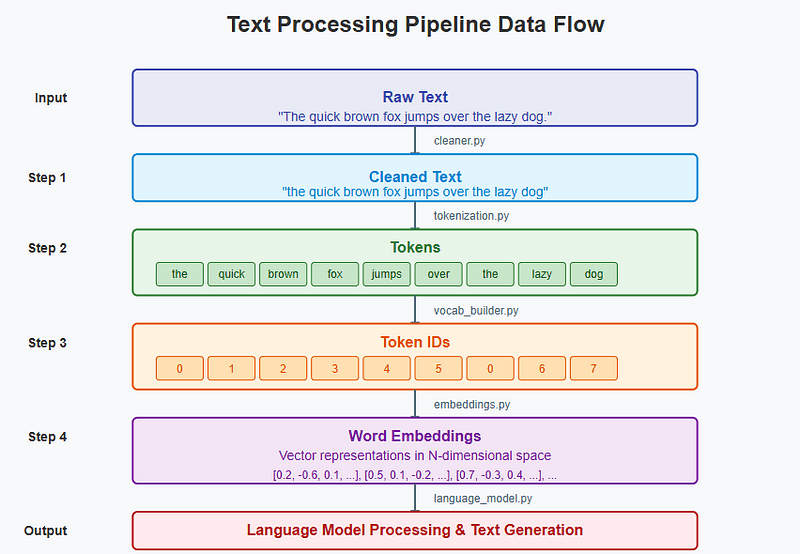
In this diagram, you can see how raw text transforms through each step:

  1. Raw Text: “The quick brown fox jumps over the lazy dog.”
  2. Text Cleaning: Conversion to lowercase, whitespace normalization
  3. Tokenization: Breaking into tokens like [“the”, “quick”, “brown”, …]
  4. Vocabulary Mapping: Converting tokens to IDs (e.g., “the” → 0, “quick” → 1, …)
  5. Embedding: Transforming IDs to vector representations
  6. Language Model: Processing embedded sequences for prediction or generation

This end-to-end flow demonstrates how text gradually transforms from human-readable format to the numerical representations that language models require.

Key Implementation Insights

GitHub Repository: day-02-text-processing-pipeline

Multiple Tokenization Strategies

One of the most important aspects of our implementation is the support for different tokenization approaches. In src/preprocessing/tokenization.py, we implement three distinct strategies:

Basic Word Tokenization: A straightforward approach that splits text on whitespace and handles punctuation separately. This is similar to how traditional NLP systems process text.
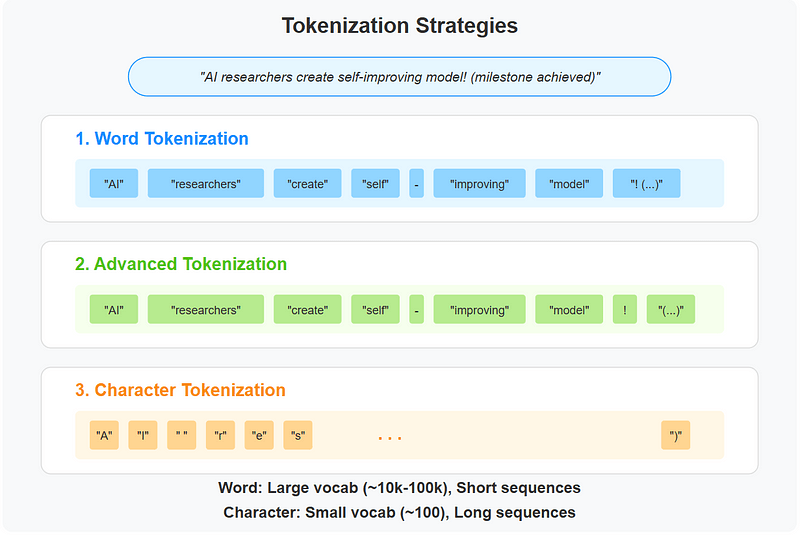
Advanced Tokenization: A more sophisticated approach that provides better handling of special characters and punctuation. This approach is useful for cleaning noisy text from sources like social media.

Character Tokenization: The simplest approach that treats each character as an individual token. While this creates shorter vocabularies, it requires much longer sequences to represent the same text.

By implementing multiple strategies, we can compare their effects on vocabulary size, sequence length, and downstream model performance. This helps us understand why modern LLMs use more complex methods like Byte Pair Encoding (BPE).

Vocabulary Building with Special Tokens

Our vocabulary implementation in src/vocabulary/vocab_builder.py demonstrates several important concepts:

Frequency-Based Ranking: Tokens are sorted by frequency, ensuring that common words get lower IDs. This is a standard practice in vocabulary design.

Special Token Handling: We explicitly add tokens like <|unk|> for unknown words and [BOS]/[EOS] for marking sequence boundaries. These special tokens are crucial for model training and inference.

Vocabulary Size Management: The implementation includes options to limit vocabulary size, which is essential for practical language models where memory constraints are important.

Word Embeddings Visualization

Perhaps the most visually engaging part of our implementation is the embedding of the visualization in src/models/embeddings.py:

Vector Representation: Each token is a high-dimensional vector, capturing semantic relationships between words.

Dimensionality Reduction: We use techniques like PCA and t-SNE to project these high-dimensional vectors into a 2D space for visualization.

Semantic Clustering: The visualizations reveal how semantically similar words cluster together in the embedding space, demonstrating how embeddings capture meaning.

Simple Language Model Implementation

The language model in src/models/language_model.py demonstrates the core architecture of sequence prediction models:
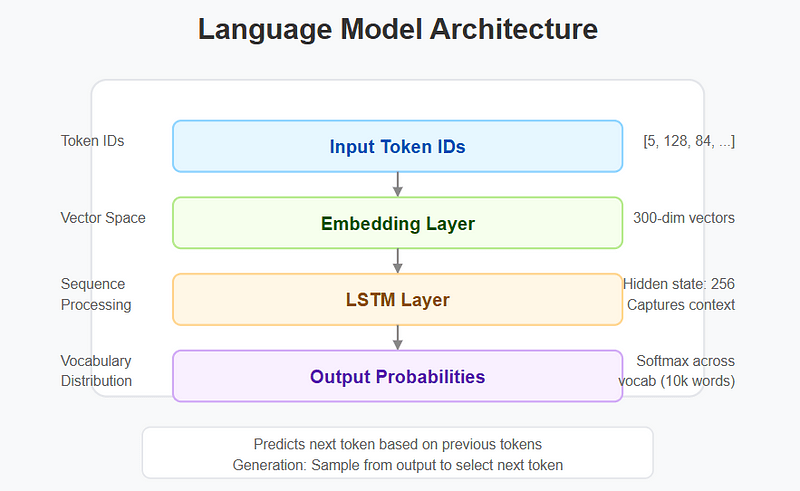
LSTM Architecture: We use a Long Short-Term Memory network to capture sequential dependencies in text.

Embedding Layer Integration: The model begins by converting token IDs to their embedding representations.

Text Generation: We implement a sampling-based generation approach that can produce new text based on a prompt.

Interactive Exploration with Streamlit

The Streamlit application in app.py ties everything together:

Interactive Input: Users can enter their own text to see how it’s processed through each stage of the pipeline.

Real-Time Visualization: The app displays tokenization results, vocabulary statistics, embedding visualizations, and generated text.

Parameter Tuning: Sliders and controls allow users to adjust model parameters like temperature or embedding dimension and see the effects instantly.

Challenges & Learnings

Challenge 1: Creating Intuitive Visualizations for Abstract Concepts

The Problem: Many NLP concepts like word embeddings are inherently high-dimensional and abstract, making them difficult to visualize and understand.

The Solution: We implemented dimensionality reduction techniques (PCA and t-SNE) to project high-dimensional embeddings into 2D space, allowing users to visualize relationships between words.

What You’ll Learn: Abstract concepts become more accessible when visualized appropriately. Even if the visualizations aren’t perfect representations of the underlying mathematics, they provide intuitive anchors that help develop mental models of complex concepts.

Challenge 2: Ensuring Coherent Component Integration

The Problem: Each component in the pipeline has different input/output requirements. Ensuring these components work together seamlessly is challenging, especially when different tokenization strategies are used.

The Solution: We created a clear data flow architecture with well-defined interfaces between components. Each component accepts standardized inputs and returns standardized outputs, making it easy to swap implementations.

What You’ll Learn: Well-defined interfaces between components are as important as the components themselves. Clear documentation and consistent data structures make it possible to experiment with different implementations while maintaining a functional pipeline.

Results & Impact

By working through this project, you’ll develop several key skills and insights:

Understanding of Tokenization Tradeoffs

You’ll learn how different tokenization strategies affect vocabulary size, sequence length, and the model’s ability to handle out-of-vocabulary words. This understanding is crucial for working with custom datasets or domain-specific language.

Vocabulary Management Principles

You’ll discover how vocabulary design impacts both model quality and computational efficiency. The practices you learn (frequency-based ordering, special tokens, size limitations) are directly applicable to production language model systems.

Embedding Space Intuition

The visualizations help build intuition about how semantic information is encoded in vector spaces. You’ll see firsthand how words with similar meanings cluster together, revealing how models “understand” language.

Model Architecture Insights

Building a simple language model provides the foundation for understanding more complex architectures like Transformers. The core concepts of embedding lookup, sequential processing, and generation through sampling are universal.

Practical Applications

These skills apply directly to real-world NLP tasks:

  • Custom Domain Adaptation: Apply specialized tokenization for fields like medicine, law, or finance
  • Resource-Constrained Deployments: Optimize vocabulary size and model architecture for edge devices
  • Debugging Complex Models: Identify issues in larger systems by understanding fundamental components
  • Data Preparation Pipelines: Build efficient preprocessing for large-scale NLP applications

Final Thoughts & Future Possibilities

Building a text processing pipeline from scratch gives you invaluable insights into the foundations of language models. You’ll understand that:

  • Tokenization choices significantly impact vocabulary size and model performance
  • Vocabulary management involves important tradeoffs between coverage and efficiency
  • Word embeddings capture semantic relationships in a mathematically useful way
  • Simple language models can demonstrate core principles before moving to transformers

As you continue your learning journey, this project provides a solid foundation that can be extended in multiple directions:

  1. Implement Byte Pair Encoding (BPE): Add a more sophisticated tokenization approach used by models like GPT
  2. Build a Transformer Architecture: Replace the LSTM with a simple Transformer encoder-decoder
  3. Add Attention Mechanisms: Implement basic attention to improve model performance
  4. Create Cross-Lingual Embeddings: Extend the system to handle multiple languages
  5. Implement Model Fine-Tuning: Add capabilities to adapt pre-trained embeddings to specific domains

What component of the text processing pipeline are you most interested in exploring further? The foundations you’ve built in this project will serve you well as you continue to explore the fascinating world of language models.


This is part of an ongoing series on building practical understanding of LLM fundamentals through hands-on mini-projects. Check out Day 1: Building a Local Q&A Assistant if you missed it, and stay tuned for more installments!

Build a Local LLM-Powered Q&A Assistant with Python, Ollama & Streamlit — No Cloud Required!

Hands-on Learning with Python, LLMs, and Streamlit

TL;DR

Local Large Language Models (LLMs) have made it possible to build powerful AI apps on everyday hardware — no expensive GPU or cloud API needed. In this Day 1 tutorial, we’ll walk through creating a Q&A chatbot powered by a local LLM running on your CPU, using Ollama for model management and Streamlit for a friendly UI. Along the way, we emphasize good software practices: a clean project structure, robust fallback strategies, and conversation context handling. By the end, you’ll have a working AI assistant on your machine and hands-on experience with Python, LLM integration, and modern development best practices. Get ready for a practical, question-driven journey into the world of local LLMs!

Introduction: The Power of Local LLMs

Have you ever wanted to build your own AI assistant like ChatGPT without relying on cloud services or high-end hardware? The recent emergence of optimized, open-source LLMs has made this possible even on standard laptops. By running these models locally, you gain complete privacy, eliminate usage costs, and get a deeper understanding of how LLMs function under the hood.

In this Day 1 project of our learning journey, we’ll build a Q&A application powered by locally running LLMs through Ollama. This project teaches not just how to integrate with these models, but also how to structure a professional Python application, design effective prompts, and create an intuitive user interface.

What sets our approach apart is a focus on question-driven development — we’ll learn by doing. At each step, we’ll pose real development questions and challenges (e.g., “How do we handle model failures?”) and solve them hands-on. This way, you’ll build a genuine understanding of LLM application development rather than just following instructions.

Learning Note: What is an LLM? A large language model (LLM) is a type of machine learning model designed for natural language processing tasks like understanding and generating text. Recent open-source LLMs (e.g. Meta’s LLaMA) can run on everyday computers, enabling personal AI apps.

Project Overview: A Local LLM Q&A Assistant

The Concept

We’re building a chat Q&A application that connects to Ollama (a tool for running LLMs locally), formats user questions into effective prompts, and maintains conversation context for follow-ups. The app will provide a clean web interface via Streamlit and include fallback mechanisms for when the primary model isn’t available. In short, it’s like creating your own local ChatGPT that you fully control.

Key Learning Objectives

  • Python Application Architecture: Design a modular project structure for clarity and maintainability.
  • LLM Integration & Prompting: Connect with local LLMs (via Ollama) and craft prompts that yield good answers.
  • Streamlit UI Development: Build an interactive web interface for chat interactions.
  • Error Handling & Fallbacks: Implement robust strategies to handle model unavailability or timeouts (e.g. use a Hugging Face model if Ollama fails).
  • Project Management: Use Git and best practices to manage code as your project grows.

Learning Note: What is Ollama? Ollama is an open-source tool that lets you download and run popular LLMs on your local machine through a simple API. We’ll use it to manage our models so we can generate answers without any cloud services.

Project Structure

We’ve organized our project with the following structure to ensure clarity and easy maintenance:

GitHub Repository: day-01-local-qa-app

day-01-local-qa-app/
│── docs/ # Documentation and learning materials
│ │── images/ # Diagrams and screenshots
│ │── README.md # Learning documentation

│── src/ # Source code
│ │── app.py # Main Streamlit application
│ │── config/ # Configuration settings
│ │ │── settings.py # Application settings
│ │── models/ # LLM integration
│ │ │── llm_loader.py # Model loading and integration
│ │ │── prompt_templates.py # Prompt engineering templates
│ │── utils/ # Utility functions
│ │── helpers.py # Helper functions
│ │── logger.py # Logging setup

│── tests/ # Test files
│── README.md # Project documentation
│── requirements.txt # Python dependencies

The Architecture: How It All Fits Together

Our application follows a layered architecture with a clean separation of concerns:

Let’s explore each component in this architecture:

1. User Interface Layer (Streamlight)

The Streamlit framework provides our web interface, handling:

  • Displaying the chat history and receiving user input (questions).
  • Options for model selection or settings (e.g. temperature, response length).
  • Visual feedback (like a “Thinking…” message while the model processes).

Learning Note: What is Streamlit? Streamlit (streamlit.io)is an open-source Python framework for building interactive web apps quickly​. It lets us create a chat interface in just a few lines of code, perfect for prototyping our AI assistant.

2. Application Logic Layer

The core application logic manages:

  • User Input Processing: Capturing the user’s question and updating the conversation history.
  • Conversation State: Keeping track of past Q&A pairs to provide context for follow-up questions.
  • Model Selection: Deciding whether to use the Ollama LLM or a fallback model.
  • Response Handling: Formatting the model’s answer and updating the UI.

3. Model Integration Layer

This layer handles all LLM interactions:

  • Connecting to the Ollama API to run the local LLM and get responses.
  • Formatting prompts using templates (ensuring the model gets clear instructions and context).
  • Managing generation parameters (like model temperature or max tokens).
  • Fallback to Hugging Face models if the local Ollama model isn’t available.

Learning Note: Hugging Face Models as Fallback — Hugging Face hosts many pre-trained models that can run locally. In our app, if Ollama’s model fails, we can query a smaller model from Hugging Face’s library to ensure the assistant still responds. This way, the app remains usable even if the primary model isn’t running.

4. Utility Layer

Supporting functions and configurations that underpin the above layers:

  • Logging: (utils/logger.py) for debugging and monitoring the app’s behavior.
  • Helper Utilities: (utils/helpers.py) for common tasks (e.g. formatting timestamps or checking API status).
  • Settings Management: (config/settings.py) for configuration like API endpoints or default parameters.

By separating these layers, we make the app easier to understand and modify. For instance, you could swap out the UI (Layer 1) or the LLM engine (Layer 3) without heavily affecting other parts of the system.

Data Flow: From Question to Answer

Here’s a step-by-step breakdown of how a user’s question travels through our application and comes back with an answer:

Key Implementation Insights

GitHub Repository: day-01-local-qa-app

Effective Prompt Engineering

The quality of responses from any LLM depends heavily on how we structure our prompts. In our application, the prompt_templates.py file defines templates for various use cases. For example, a simple question-answering template might look like:

"""
Prompt templates for different use cases.
"""


class PromptTemplate:
"""
Class to handle prompt templates and formatting.
"""


@staticmethod
def qa_template(question, conversation_history=None):
"""
Format a question-answering prompt.

Args:
question (str): User question
conversation_history (list, optional): List of previous conversation turns

Returns:
str: Formatted prompt
"""

if not conversation_history:
return f"""
You are a helpful assistant. Answer the following question:

Question: {question}

Answer:
"""
.strip()

# Format conversation history
history_text = ""
for turn in conversation_history:
role = turn.get("role", "")
content = turn.get("content", "")
if role.lower() == "user":
history_text += f"Human: {content}\n"
elif role.lower() == "assistant":
history_text += f"Assistant: {content}\n"

# Add the current question
history_text += f"Human: {question}\nAssistant:"

return f"""
You are a helpful assistant. Here's the conversation so far:

{history_text}
"""
.strip()

@staticmethod
def coding_template(question, language=None):
"""
Format a prompt for coding questions.

Args:
question (str): User's coding question
language (str, optional): Programming language

Returns:
str: Formatted prompt
"""

lang_context = f"using {language}" if language else ""

return f"""
You are an expert programming assistant {lang_context}. Answer the following coding question with clear explanations and example code:

Question: {question}

Answer:
"""
.strip()

@staticmethod
def educational_template(question, topic=None, level="beginner"):
"""
Format a prompt for educational explanations.

Args:
question (str): User's question
topic (str, optional): The topic area
level (str): Knowledge level (beginner, intermediate, advanced)

Returns:
str: Formatted prompt
"""

topic_context = f"about {topic}" if topic else ""

return f"""
You are an educational assistant helping a {level} learner {topic_context}. Provide a clear and helpful explanation for the following question:

Question: {question}

Explanation:
"""
.strip()

This template-based approach:

  • Provides clear instructions to the model on what we expect (e.g., answer format or style).
  • Includes conversation history consistently, so the model has context for follow-up questions.
  • Can be extended for different modes (educational Q&A, coding assistant, etc.) by tweaking the prompt wording without changing code.

In short, good prompt engineering helps the LLM give better answers by setting the stage properly.

Resilient Model Management

A key lesson in LLM app development is planning for failure. Things can go wrong — the model might not be running, an API call might fail, etc. Our llm_loader.py implements a sophisticated fallback mechanism to handle these cases:

"""
LLM loader for different model backends (Ollama and HuggingFace).
"""


import sys
import json
import requests
from pathlib import Path
from transformers import pipeline

# Add src directory to path for imports
src_dir = str(Path(__file__).resolve().parent.parent)
if src_dir not in sys.path:
sys.path.insert(0, src_dir)

from utils.logger import logger
from utils.helpers import time_function, check_ollama_status
from config import settings

class LLMManager:
"""
Manager for loading and interacting with different LLM backends.
"""


def __init__(self):
"""Initialize the LLM Manager."""
self.ollama_host = settings.OLLAMA_HOST
self.default_ollama_model = settings.DEFAULT_OLLAMA_MODEL
self.default_hf_model = settings.DEFAULT_HF_MODEL

# Check if Ollama is available
self.ollama_available = check_ollama_status(self.ollama_host)
logger.info(f"Ollama available: {self.ollama_available}")

# Initialize HuggingFace model if needed
self.hf_pipeline = None
if not self.ollama_available:
logger.info(f"Initializing HuggingFace model: {self.default_hf_model}")
self._initialize_hf_model(self.default_hf_model)

def _initialize_hf_model(self, model_name):
"""Initialize a HuggingFace model pipeline."""
try:
self.hf_pipeline = pipeline(
"text2text-generation",
model=model_name,
max_length=settings.DEFAULT_MAX_LENGTH,
device=-1, # Use CPU
)
logger.info(f"Successfully loaded HuggingFace model: {model_name}")
except Exception as e:
logger.error(f"Error loading HuggingFace model: {str(e)}")
self.hf_pipeline = None

@time_function
def generate_with_ollama(self, prompt, model=None, temperature=None, max_tokens=None):
"""
Generate text using Ollama API.

Args:
prompt (str): Input prompt
model (str, optional): Model name
temperature (float, optional): Sampling temperature
max_tokens (int, optional): Maximum tokens to generate

Returns:
str: Generated text
"""

if not self.ollama_available:
logger.warning("Ollama not available, falling back to HuggingFace")
return self.generate_with_hf(prompt)

model = model or self.default_ollama_model
temperature = temperature or settings.DEFAULT_TEMPERATURE
max_tokens = max_tokens or settings.DEFAULT_MAX_LENGTH

try:
# Updated: Use 'completion' endpoint for newer Ollama versions
request_data = {
"model": model,
"prompt": prompt,
"temperature": temperature,
"max_tokens": max_tokens,
"stream": False
}

# Try the newer completion endpoint first
response = requests.post(
f"{self.ollama_host}/api/chat",
json={"model": model, "messages": [{"role": "user", "content": prompt}], "stream": False},
headers={"Content-Type": "application/json"}
)

if response.status_code == 200:
result = response.json()
return result.get("message", {}).get("content", "")

# Fall back to completion endpoint
response = requests.post(
f"{self.ollama_host}/api/completion",
json=request_data,
headers={"Content-Type": "application/json"}
)

if response.status_code == 200:
result = response.json()
return result.get("response", "")

# Fall back to the older generate endpoint
response = requests.post(
f"{self.ollama_host}/api/generate",
json=request_data,
headers={"Content-Type": "application/json"}
)

if response.status_code == 200:
result = response.json()
return result.get("response", "")
else:
logger.error(f"Ollama API error: {response.status_code} - {response.text}")
return self.generate_with_hf(prompt)

except Exception as e:
logger.error(f"Error generating with Ollama: {str(e)}")
return self.generate_with_hf(prompt)

@time_function
def generate_with_hf(self, prompt, model=None, temperature=None, max_length=None):
"""
Generate text using HuggingFace pipeline.

Args:
prompt (str): Input prompt
model (str, optional): Model name
temperature (float, optional): Sampling temperature
max_length (int, optional): Maximum length to generate

Returns:
str: Generated text
"""

model = model or self.default_hf_model
temperature = temperature or settings.DEFAULT_TEMPERATURE
max_length = max_length or settings.DEFAULT_MAX_LENGTH

# Initialize model if not done yet or if model changed
if self.hf_pipeline is None or self.hf_pipeline.model.name_or_path != model:
self._initialize_hf_model(model)

if self.hf_pipeline is None:
return "Sorry, the model is not available at the moment."

try:
result = self.hf_pipeline(
prompt,
temperature=temperature,
max_length=max_length
)
return result[0]["generated_text"]

except Exception as e:
logger.error(f"Error generating with HuggingFace: {str(e)}")
return "Sorry, an error occurred during text generation."

def generate(self, prompt, use_ollama=True, **kwargs):
"""
Generate text using the preferred backend.

Args:
prompt (str): Input prompt
use_ollama (bool): Whether to use Ollama if available
**kwargs: Additional generation parameters

Returns:
str: Generated text
"""

if use_ollama and self.ollama_available:
return self.generate_with_ollama(prompt, **kwargs)
else:
return self.generate_with_hf(prompt, **kwargs)

def get_available_models(self):
"""
Get a list of available models from both backends.

Returns:
dict: Dictionary with available models
"""

models = {
"ollama": [],
"huggingface": settings.AVAILABLE_HF_MODELS
}

# Get Ollama models if available
if self.ollama_available:
try:
response = requests.get(f"{self.ollama_host}/api/tags")
if response.status_code == 200:
data = response.json()
models["ollama"] = [model["name"] for model in data.get("models", [])]
else:
models["ollama"] = settings.AVAILABLE_OLLAMA_MODELS
except:
models["ollama"] = settings.AVAILABLE_OLLAMA_MODELS

return models

This approach ensures our application remains functional even when:

  • Ollama isn’t running or the primary API endpoint is unavailable.
  • A specific model fails to load or respond.
  • The API has changed (we try multiple versions of endpoints as shown above).
  • Generation takes too long or times out.

By layering these fallbacks, we avoid a total failure. If Ollama doesn’t respond, the app will automatically try another route or model so the user still gets an answer.

Conversation Context Management

LLMs have no built-in memory between requests — they treat each prompt independently. To create a realistic conversational experience, our app needs to remember past interactions. We manage this using Streamlit’s session state and prompt templates:

"""
Main application file for the LocalLLM Q&A Assistant.

This is the entry point for the Streamlit application that provides a chat interface
for interacting with locally running LLMs via Ollama, with fallback to HuggingFace models.
"""


import sys
import time
from pathlib import Path

# Add parent directory to sys.path
sys.path.append(str(Path(__file__).resolve().parent))

# Import Streamlit and other dependencies
import streamlit as st

# Import local modules
from config import settings
from utils.logger import logger
from utils.helpers import check_ollama_status, format_time
from models.llm_loader import LLMManager
from models.prompt_templates import PromptTemplate

# Initialize LLM Manager
llm_manager = LLMManager()

# Get available models
available_models = llm_manager.get_available_models()

# Set page configuration
st.set_page_config(
page_title=settings.APP_TITLE,
page_icon=settings.APP_ICON,
layout="wide",
initial_sidebar_state="expanded"
)

# Add custom CSS
st.markdown("""
<style>
.main .block-container {
padding-top: 2rem;
}
.stChatMessage {
background-color: rgba(240, 242, 246, 0.5);
}
.stChatMessage[data-testid="stChatMessageContent"] {
border-radius: 10px;
}
</style>
"""
, unsafe_allow_html=True)

# Initialize session state
if "messages" not in st.session_state:
st.session_state.messages = []

if "generation_time" not in st.session_state:
st.session_state.generation_time = None

# Sidebar with configuration options
with st.sidebar:
st.title("📝 Settings")

# Model selection
st.subheader("Model Selection")

backend_option = st.radio(
"Select Backend:",
["Ollama", "HuggingFace"],
index=0 if llm_manager.ollama_available else 1,
disabled=not llm_manager.ollama_available
)

if backend_option == "Ollama" and llm_manager.ollama_available:
model_option = st.selectbox(
"Ollama Model:",
available_models["ollama"],
index=0 if available_models["ollama"] else 0,
disabled=not available_models["ollama"]
)
use_ollama = True
else:
model_option = st.selectbox(
"HuggingFace Model:",
available_models["huggingface"],
index=0
)
use_ollama = False

# Generation parameters
st.subheader("Generation Parameters")

temperature = st.slider(
"Temperature:",
min_value=0.1,
max_value=1.0,
value=settings.DEFAULT_TEMPERATURE,
step=0.1,
help="Higher values make the output more random, lower values make it more deterministic."
)

max_length = st.slider(
"Max Length:",
min_value=64,
max_value=2048,
value=settings.DEFAULT_MAX_LENGTH,
step=64,
help="Maximum number of tokens to generate."
)

# About section
st.subheader("About")
st.markdown("""
This application uses locally running LLM models to answer questions.
- Primary: Ollama API
- Fallback: HuggingFace Models
"""
)

# Show status
st.subheader("Status")
ollama_status = "✅ Connected" if llm_manager.ollama_available else "❌ Not available"
st.markdown(f"**Ollama API**: {ollama_status}")

if st.session_state.generation_time:
st.markdown(f"**Last generation time**: {st.session_state.generation_time}")

# Clear conversation button
if st.button("Clear Conversation"):
st.session_state.messages = []
st.rerun()

# Main chat interface
st.title("💬 LocalLLM Q&A Assistant")
st.markdown("Ask a question and get answers from a locally running LLM.")

# Display chat messages
for message in st.session_state.messages:
with st.chat_message(message["role"]):
st.markdown(message["content"])

# Chat input
if prompt := st.chat_input("Ask a question..."):
# Add user message to history
st.session_state.messages.append({"role": "user", "content": prompt})

# Display user message
with st.chat_message("user"):
st.markdown(prompt)

# Generate response
with st.chat_message("assistant"):
message_placeholder = st.empty()
message_placeholder.markdown("Thinking...")

try:
# Format prompt with template and history
template = PromptTemplate.qa_template(
prompt,
st.session_state.messages[:-1] if len(st.session_state.messages) > 1 else None
)

# Measure generation time
start_time = time.time()

# Generate response
if use_ollama:
response = llm_manager.generate_with_ollama(
template,
model=model_option,
temperature=temperature,
max_tokens=max_length
)
else:
response = llm_manager.generate_with_hf(
template,
model=model_option,
temperature=temperature,
max_length=max_length
)

# Calculate generation time
end_time = time.time()
generation_time = format_time(end_time - start_time)
st.session_state.generation_time = generation_time

# Log generation info
logger.info(f"Generated response in {generation_time} with model {model_option}")

# Display response
message_placeholder.markdown(response)

# Add assistant response to history
st.session_state.messages.append({"role": "assistant", "content": response})

except Exception as e:
error_message = f"Error generating response: {str(e)}"
logger.error(error_message)
message_placeholder.markdown(f"⚠️ {error_message}")

# Footer
st.markdown("---")
st.markdown(
"Built with Streamlit, Ollama, and HuggingFace. "
"Running LLMs locally on CPU. "
"<br><b>Author:</b> Shanoj",
unsafe_allow_html=True
)

This approach:

  • Preserves conversation state across interactions by storing all messages in st.session_state.
  • Formats the history into the prompt so the LLM can see the context of previous questions and answers.
  • Manages the history length (you might limit how far back to include to stay within model token limits).
  • Results in coherent multi-turn conversations — the AI can refer back to earlier topics naturally.

Without this, the assistant would give disjointed answers with no memory of what was said before. Managing state is crucial for a chatbot-like experience.

Challenges and Solutions

Throughout development, we faced a few specific challenges. Here’s how we addressed each:

Challenge 1: Handling Different Ollama API Versions

Ollama’s API has evolved, meaning an endpoint that worked in one version might not work in another. To make our app robust to these changes, we implemented multiple endpoint attempts (as shown earlier in llm_loader.generate). In practice, the code tries the latest endpoint first (/api/chat), and if it receives a 404 error (not found), it automatically falls back to older endpoints (/api/completion, then /api/generate).

Solution: By cascading through possible endpoints, we ensure compatibility with different Ollama versions without requiring the user to manually update anything. The assistant “just works” with whichever API is available.

Challenge 2: Python Path Management

In a modular Python project, getting imports to work correctly can be tricky, especially when running the app from different directories or as a module. We encountered issues where our modules couldn’t find each other. Our solution was to use explicit path management at runtime:

# At the top of src/app.py or relevant entry point
from pathlib import Path
import sys

# Add parent directory (project src root) to sys.path for module discovery
src_dir = str(Path(__file__).resolve().parent.parent)
if src_dir not in sys.path:
sys.path.insert(0, src_dir)

Solution: This ensures that the src/ directory is always in Python’s module search path, so modules like models and utils can be imported reliably regardless of how the app is launched. This explicit approach prevents those “module not found” errors that often plague larger Python projects.

Challenge 3: Balancing UI Responsiveness with Processing Time

LLMs can take several seconds (or more) to generate a response, which might leave the user staring at a blank screen wondering if anything is happening. We wanted to keep the UI responsive and informative during these waits.

Solution: We implemented a simple loading indicator in the Streamlit UI. Before sending the prompt to the model, we display a temporary message:

# In src/app.py, just before calling the LLM generate function
message_placeholder = st.empty()
message_placeholder.markdown("_Thinking..._")

# Call the model to generate the answer (which may take time)
response = llm.generate(prompt)

# Once we have a response, replace the placeholder with the answer
message_placeholder.markdown(response)

Using st.empty() gives us a placeholder in the chat area that we can update later. First we show a “Thinking…” message immediately, so the user knows the question was received. After generation finishes, we overwrite that placeholder with the actual answer. This provides instant feedback (no more frozen feeling) and improves the user experience greatly.

Running the Application

Now that everything is implemented, running the application is straightforward. From the project’s root directory, execute the Streamlit app:

streamlit run src/app.py

This will launch the Streamlit web interface in your browser. Here’s what you can do with it:

  • Ask questions in natural language through the chat UI.
  • Get responses from your local LLM (the answer appears right below your question).
  • Adjust settings like which model to use, the response creativity (temperature), or maximum answer length.
  • View conversation history as the dialogue grows, ensuring context is maintained.

The application automatically detects available Ollama models on your machine. If the primary model isn’t available, it will gracefully fall back to a secondary option (e.g., a Hugging Face model you’ve configured) so you’re never left without an answer. You now have your own private Q&A assistant running on your computer!

Learning Note: Tip — Installing Models. Make sure you have at least one LLM model installed via Ollama (for example, LLaMA or Mistral). You can run ollama pull <model-name> to download a model. Our app will list and use any model that Ollama has available locally.

GitHub Repository: day-01-local-qa-app

This is part of an ongoing series on building practical understanding of LLM fundamentals through hands-on mini-projects. Check out Day 2: Build an LLM Text Processing Pipeline: Tokenization & Vocabulary [Day -2]

Thank you for being a part of the community

Before you go: