Tag Archives: Kubernetes

Kubernetes 101: Deploying & Scaling a Microservice Application

Clone the Git Repository

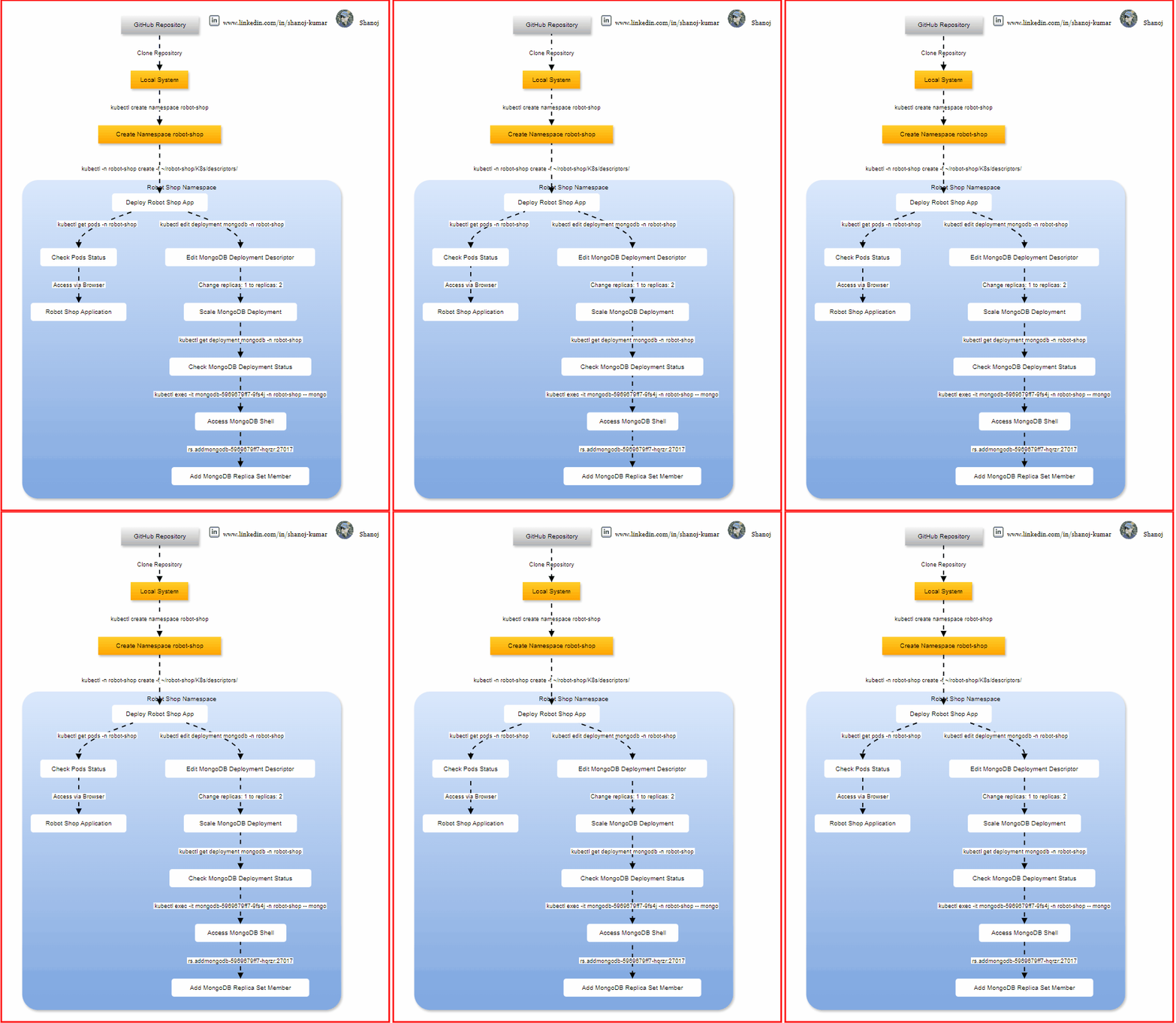
First, clone the Git repository that contains the pre-made descriptors for the Robot Shop application.

cd ~/
git clone https://github.com/instana/robot-shop.git

Thanks to Instana for providing the Robot Shop application!

Create a Namespace

Since the Robot Shop application consists of multiple components, it’s a good practice to create a separate namespace for the application. This isolates the resources and makes management easier.

kubectl create namespace robot-shop

Deploy the Application

Deploy the application to the Kubernetes cluster using the provided descriptors.

kubectl -n robot-shop create -f ~/robot-shop/K8s/descriptors/

Check the Status of the Application’s Pods

To ensure the deployment was successful, check the status of the application’s pods.

kubectl get pods -n robot-shop

Access the Robot Shop Application

You should be able to reach the Robot Shop application from your browser using the Kubernetes master node’s public IP.

http://<kube_master_public_ip>:30080

Scale Up the MongoDB Deployment

To ensure high availability and reliability, scale up the MongoDB deployment to two replicas instead of just one.

Edit the Deployment Descriptor

Edit the MongoDB deployment descriptor.

kubectl edit deployment mongodb -n robot-shop

In the YAML file that opens, locate the spec: section and find the line that says replicas: 1. Change this value to replicas: 2.

spec:
replicas: 2

Save and exit the editor.

Check the Status of the Deployment

Verify that the MongoDB deployment has scaled up to two replicas.

kubectl get deployment mongodb -n robot-shop

After a few moments, you should see the number of available replicas is 2.

Add a New Replica Set Member

To further ensure data redundancy, add the new MongoDB replica to the replica set.

Execute MongoDB Shell

Use kubectl exec to open a MongoDB shell session in one of the MongoDB pods.

kubectl exec -it mongodb-5969679ff7-nkgpq -n robot-shop -- mongo

Replace <mongodb-pod-name 1> with the name of one of the MongoDB pods.

Add the New Replica Set Member

In the MongoDB shell, run the following command to add the new member to the replica set.

Check the status of the replica set.

rs.status()

Add the other MongoDB pod to the replica set.

rs.add("mongodb-5969679ff7-w5kpg:27017")

By following these steps, you have successfully deployed the Robot Shop application, scaled up the MongoDB deployment for high availability, and added a new replica set member to ensure data redundancy. This setup helps in maintaining a reliable and robust application environment.

Stackademic 🎓

Thank you for reading until the end. Before you go:

Kubernetes 101: Deploying and Testing a Service

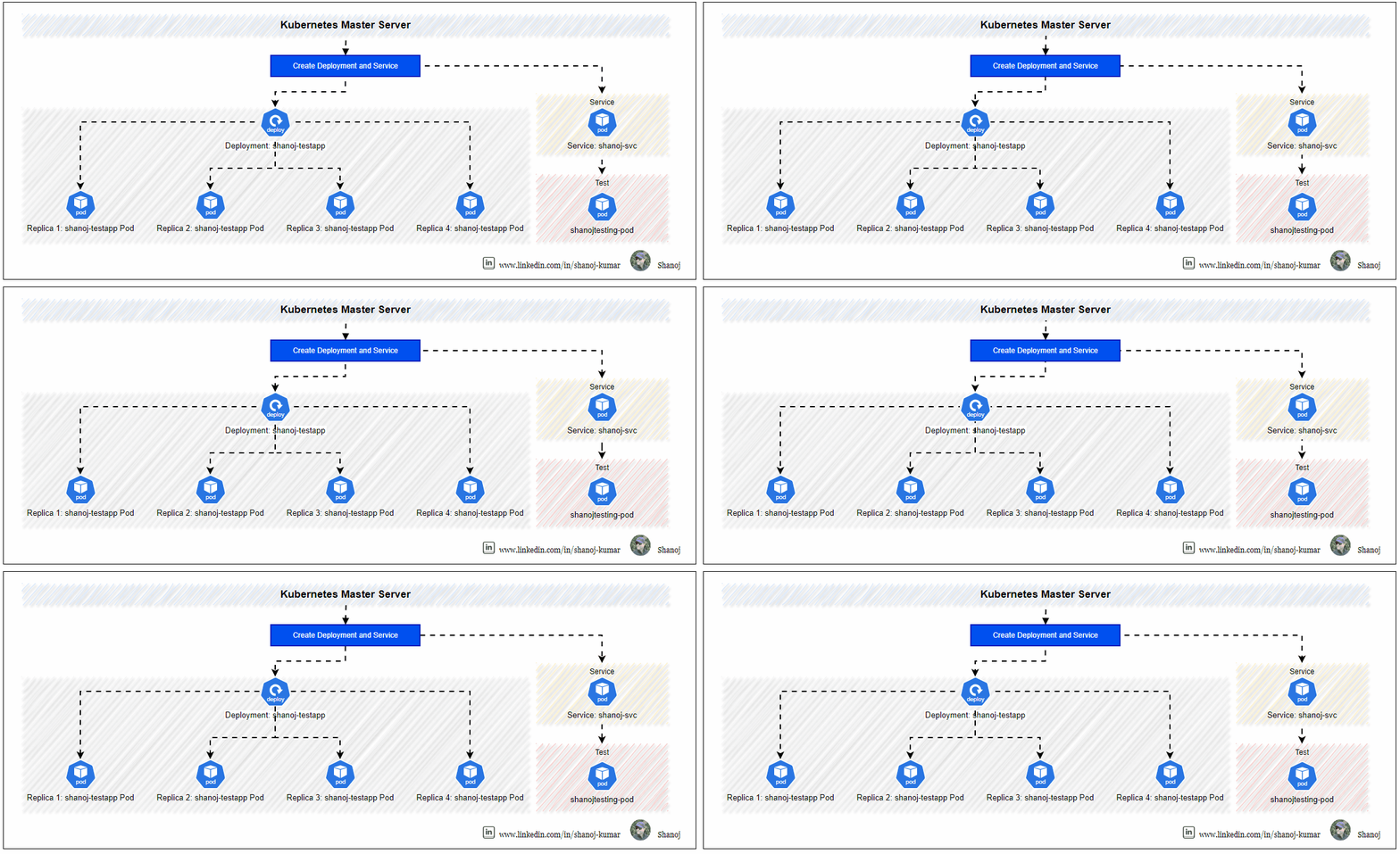
This hands-on article will help you create a simple deployment and a service, enabling you to manage and access applications efficiently within a Kubernetes cluster. You will create a deployment for the shanoj-testapp service with four replicas and a service that other pods in the cluster can access.

Creating the Deployment

A deployment ensures that a specified number of pod replicas are running at any given time. In this case, we will create a deployment for the shanoj-testapp service with four replicas.

Create the Deployment YAML File

Create a YAML file for the deployment using the cat command and the following content:

cat << EOF | kubectl apply -f -
apiVersion: apps/v1
kind: Deployment
metadata:
name: shanoj-testapp
labels:
app: shanoj-testapp
spec:
replicas: 4
selector:
matchLabels:
app: shanoj-testapp
template:
metadata:
labels:
app: shanoj-testapp
spec:
containers:
- name: shanoj-testapp
image: nginx:latest
ports:
- containerPort: 80
EOF

Image Reference: https://hub.docker.com/_/nginx

Creating the Service

A service in Kubernetes defines a logical set of pods and a policy by which to access them. In this step, we will create a service to provide access to the shanoj-testapp pods.

Create the Service YAML File

Create a YAML file for the service using the cat command and the following content:

cat << EOF | kubectl apply -f -
kind: Service
apiVersion: v1
metadata:
name: shanoj-svc
spec:
selector:
app: shanoj-testapp
ports:
- protocol: TCP
port: 80
targetPort: 80
EOF

This YAML file defines a service named shanoj-svc that selects pods with the label app=shanoj-testapp and forwards traffic to port 80 on the pods.

Verifying the Service

After creating the service, verify that it is running and accessible within the cluster.

Check the Service Status

Use the following command to check the status of the shanoj-svc service:

kubectl get svc shanoj-svc

Access the Service from a shanojtesting-pod Pod

Creating the shanojtesting-pod Pod

You need to create a shanojtesting-pod pod to use it for testing. Create a YAML configuration file for the shanojtesting-pod pod. Create a file named shanojtesting-pod.yaml with the following content:

cat << EOF > shanojtesting-pod.yaml
apiVersion: v1
kind: Pod
metadata:
name: shanojtesting-pod
labels:
app: shanojtesting-pod
spec:
containers:
- name: shanojtesting-pod
image: alpine
command: ['sh', '-c', 'sleep 3600']
EOF

Image Reference: https://hub.docker.com/_/alpine

Apply the configuration to create the shanojtesting-pod pod:

kubectl apply -f shanojtesting-pod.yaml

Ensure the shanojtesting-pod pod is running:

kubectl get pods

Testing the Service

To ensure the service is accessible, use the kubectl exec command to query the shanoj-svc service from the shanojtesting-pod testing pod:

kubectl exec shanojtesting-pod -- curl -s shanoj-svc

If the service is functioning correctly, this command should return a response from the shanoj-testapp pods.

Stackademic 🎓

Thank you for reading until the end. Before you go: