Author Archives: Shanoj

Unknown's avatar

About Shanoj

Author : Shanoj is a Data engineer and solutions architect passionate about delivering business value and actionable insights through well-architected data products. He holds several certifications on AWS, Oracle, Apache, Google Cloud, Docker, Linux and focuses on data engineering and analysis using SQL, Python, BigData, RDBMS, Apache Spark, among other technologies. He has 17+ years of history working with various technologies in the Retail and BFS domains.

Oracle Multi-tenant Application Containers – Create Application Container:

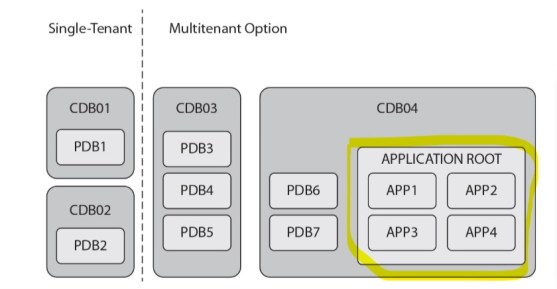
 Application containers:
An application container consists of an application root and one or more
application PDBs. The container stores data for a specific application, which
contains common data and metadata. You can upgrade or patch the
application once in the application root, and then synchronize the application
PDBs with the root.

Annotation 2019-02-03 141100

Reference book:
Oracle Database 12c Release 2 Multitenant by Franck Pachot, Vit Špinka, Anton Els.

Create Application root:

Login to the CDB root as SYSDBA and create an application root named shan_app.

[oracle@multisrv1 ~]$ ps -ef|grep pmon
grid 4986 1 0 22:10 ? 00:00:00 asm_pmon_+ASM
oracle 5086 1 0 22:10 ? 00:00:00 ora_pmon_CDB1
oracle 6241 6216 0 22:39 pts/0 00:00:00 grep pmon
[oracle@multisrv1 ~]$ sqlplus sys/oracle@cdb1 as sysdba

SQL*Plus: Release 12.2.0.1.0 Production on Sun Feb 3 22:39:37 2019

Copyright (c) 1982, 2016, Oracle. All rights reserved.


Connected to:
Oracle Database 12c Enterprise Edition Release 12.2.0.1.0 - 64bit Production

SQL>

CREATE PLUGGABLE DATABASE shan_app AS APPLICATION CONTAINER
ADMIN USER shan_appadm IDENTIFIED BY oracle;
ALTER PLUGGABLE DATABASE shan_app OPEN;
col name format a10
SELECT CON_ID, NAME, OPEN_MODE
FROM V$PDBS WHERE APPLICATION_ROOT='YES';
CON_ID NAME OPEN_MODE
---------- ---------- ----------
5 SHAN_APP READ ONLY

— save the state of shan_app (otherwise, it will be closed when you reboot):

ALTER PLUGGABLE DATABASE shan_app SAVE STATE;

View the tablespaces and the datafiles created for the application container shan_app.
Obtain the CON_ID value from the query in the previous step.
Observe that the tablespaces SYSTEM, SYSAUX, and UNDOTBS1 are created.

SQL> SELECT FILE_NAME, TABLESPACE_NAME FROM CDB_DATA_FILES WHERE CON_ID=5;

FILE_NAME
--------------------------------------------------------------------------------
TABLESPACE_NAME
------------------------------
+DATA/CDB1/80F305B39D922445E0535800A8C090A6/DATAFILE/system.275.999230255
SYSTEM

+DATA/CDB1/80F305B39D922445E0535800A8C090A6/DATAFILE/sysaux.276.999230255
SYSAUX

+DATA/CDB1/80F305B39D922445E0535800A8C090A6/DATAFILE/undotbs1.274.999230255
UNDOTBS1


Switch the current container to the application root and check which privilege is granted to SHAN_APPADM
Observe that the application root administrator is only granted the role PDB_DBA. This role has three privileges granted to it.
ALTER SESSION SET CONTAINER=SHAN_APP;
-- check the roles granted to the user:
col grantee format a10
col granted_role format a15
SELECT GRANTEE, GRANTED_ROLE, COMMON
FROM DBA_ROLE_PRIVS where GRANTEE ='SHAN_APPADM';
-- check the privileges granted to the role:
col role format a10
col privilege format a30
SELECT ROLE, PRIVILEGE, ADMIN_OPTION, COMMON, INHERITED
FROM ROLE_SYS_PRIVS WHERE ROLE='PDB_DBA';

Configure the tnsnames.ora file to allow connecting to the application root through the listener.

vi tnsnames.ora
SHAN_APP =
(DESCRIPTION =
(ADDRESS_LIST =
(ADDRESS = (PROTOCOL = TCP)(HOST = srv1)(PORT = 1521))
)
(CONNECT_DATA =
(SERVICE_NAME = shan_app.localdomain)
)
)

Test the configuration

conn sys/oracle@shan_app as sysdba

Install an application in the application root

Login to the application root as SYSDBA.

conn sys/oracle@shan_app as sysdba

Begin installing the HR_APP application.
Note: When you install a new application in an application root, you always start with this statement.

ALTER PLUGGABLE DATABASE APPLICATION hr_app BEGIN INSTALL '1.0';

Create the application tablespace (HR_TBS) and create the application owner user (HR).
The application owner (HR) should have the privileges enough to control the application objects, like the application tables, indexes, sequences, PL/SQL program units… etc.
The application owner is common user in the application root.

CREATE TABLESPACE hr_tbs;
CREATE USER HR IDENTIFIED BY oracle DEFAULT TABLESPACE HR_TBS QUOTA UNLIMITED ON HR_TBS CONTAINER = ALL;
GRANT CREATE SESSION, CREATE TABLE, CREATE SEQUENCE, CREATE VIEW, CREATE PROCEDURE, CREATE TRIGGER TO HR;

Switch the current schema to the application user.

ALTER SESSION SET CURRENT_SCHEMA=hr;

Run the script file.

@<run the sql for the appication objects creation>.sql

End the application installation, if all the commands in the script successfully run.

ALTER PLUGGABLE DATABASE APPLICATION hr_app END INSTALL '1.0';

Verify that the application has been successfully created.

column app_name format a15
column app_version format a10
column app_status format a15
SELECT APP_NAME, APP_VERSION, APP_STATUS FROM DBA_APPLICATIONS WHERE APP_IMPLICIT='N';

Using Resource Manager with CDB and PDBs

With Resource Manager we can:
– Distribute CPU time among the users and applications
– Limit the amount of PGA memory
– Limit degree of parallelism
– Set priorities of parallel statements
– Limit the number of parallel execution servers
– Create an active session pool
– Limit session idle time
– Prevent executing long time operations

For more details, you can refer (MOS):

Managing OS Resources Among PDBs Using PDB Perfromance Profiles – 12.2 New Feature (Doc ID 2171135.1)

Verify that PDB’s databases are available and opened in read/write mode.

SQL> col name format a10
SQL> SELECT NAME, OPEN_MODE FROM V$PDBS;

NAME OPEN_MODE
---------- ----------
PDB$SEED READ ONLY
PDB1 READ WRITE
PDB2 READ WRITE

Create the resource plan BALANACED_PLAN and configure the plan directives in it.
This plan gives one share to both PDB1 and PDB2. This means that they both have the same priority to receive the CPU time resource

SQL> ALTER SESSION SET CONTAINER = CDB$ROOT;
Session altered.
SQL> EXEC DBMS_RESOURCE_MANAGER.CLEAR_PENDING_AREA();
PL/SQL procedure successfully completed.
SQL> EXEC DBMS_RESOURCE_MANAGER.CREATE_PENDING_AREA();
PL/SQL procedure successfully completed.
SQL> EXEC DBMS_RESOURCE_MANAGER.CREATE_CDB_PLAN('BALANACED_PLAN', 'One share to PDB1 and PDB2');
PL/SQL procedure successfully completed.
SQL> EXEC DBMS_RESOURCE_MANAGER.CREATE_CDB_PLAN_DIRECTIVE('BALANACED_PLAN', 'PDB1',shares => 1);
PL/SQL procedure successfully completed.
SQL> EXEC DBMS_RESOURCE_MANAGER.CREATE_CDB_PLAN_DIRECTIVE('BALANACED_PLAN', 'PDB2',shares => 1);
PL/SQL procedure successfully completed.

Create the resource plan BIASED_PLAN and configure the plan directives in it.
This plan gives four shares to PDB1 and one share to PDB2.

SQL> EXEC DBMS_RESOURCE_MANAGER.CREATE_CDB_PLAN('BIASED_PLAN', 'PDB1 is given high priority');
PL/SQL procedure successfully completed.
SQL> EXEC DBMS_RESOURCE_MANAGER.CREATE_CDB_PLAN_DIRECTIVE('BIASED_PLAN', 'PDB1',shares => 3);
PL/SQL procedure successfully completed.
SQL> EXEC DBMS_RESOURCE_MANAGER.CREATE_CDB_PLAN_DIRECTIVE('BIASED_PLAN', 'PDB2',shares => 1);
PL/SQL procedure successfully completed.
SQL> EXEC DBMS_RESOURCE_MANAGER.VALIDATE_PENDING_AREA();
PL/SQL procedure successfully completed.
SQL> EXEC DBMS_RESOURCE_MANAGER.SUBMIT_PENDING_AREA();
PL/SQL procedure successfully completed.
SQL>

Make sure the plans and their associated directives were successfully created.

SQL> col plan format a20
SQL> SELECT Plan from CDB_CDB_Rsrc_Plans WHERE CON_ID = 1 AND PLAN IN ('BALANACED_PLAN','BIASED_PLAN')ORDER BY 1;

PLAN
--------------------
BALANACED_PLAN
BIASED_PLAN

SQL> col pluggable_database format a30
SQL> SELECT PLAN, PLUGGABLE_DATABASE, SHARES FROM CDB_CDB_RSRC_PLAN_DIRECTIVES WHERE CON_ID = 1 AND PLAN IN ('BALANACED_PLAN','BIASED_PLAN') ORDER BY 1, 2;

PLAN PLUGGABLE_DATABASE SHARES
-------------------- ------------------------------ ----------
BALANACED_PLAN ORA$AUTOTASK
BALANACED_PLAN ORA$DEFAULT_PDB_DIRECTIVE 1
BALANACED_PLAN PDB1 1
BALANACED_PLAN PDB2 1
BIASED_PLAN ORA$AUTOTASK
BIASED_PLAN ORA$DEFAULT_PDB_DIRECTIVE 1
BIASED_PLAN PDB1 3
BIASED_PLAN PDB2 1

8 rows selected.

Delete the resource plans.

begin
DBMS_RESOURCE_MANAGER.CLEAR_PENDING_AREA();
DBMS_RESOURCE_MANAGER.CREATE_PENDING_AREA();
DBMS_RESOURCE_MANAGER.DELETE_CDB_PLAN('BALANACED_PLAN');
DBMS_RESOURCE_MANAGER.DELETE_CDB_PLAN('BIASED_PLAN');
DBMS_RESOURCE_MANAGER.VALIDATE_PENDING_AREA();
DBMS_RESOURCE_MANAGER.SUBMIT_PENDING_AREA();
end;
/

Oracle RMAN Backup and Recovery in CDB & PDBs

Below points are demonstrated in this document :

1. Performing RMAN Whole CDB Backup
2. Performing RMAN Whole and Partial PDB Backup
3. Performing RMAN Recovery from SYSTEM PDB Datafile Loss
4. Performing RMAN Recovery from non-SYSTEM CDB Datafile Loss
5. Performing PITR in a Pluggable Database
6. Performing PITR on a Tablespace in a PDB
7. Performing Flashback for the CDB from Dropping a Common User
8. Performing Flashback for PDBs
9. Using Data Recovery Advisory commands

Performing RMAN Whole CDB Backup:
Run RMAN and connect as target to CDB1 and make the configurations as shown below.

[oracle@multisrv1 ~]$ ps -ef|grep pmon
grid 4833 1 0 06:19 ? 00:00:00 asm_pmon_+ASM
oracle 4935 1 0 06:19 ? 00:00:00 ora_pmon_CDB1
oracle 5794 5742 0 06:31 pts/0 00:00:00 grep pmon
[oracle@multisrv1 ~]$ rman target /

Recovery Manager: Release 12.2.0.1.0 - Production on Thu Jan 24 06:31:57 2019

Copyright (c) 1982, 2017, Oracle and/or its affiliates. All rights reserved.

connected to target database: CDB1 (DBID=948697708)

RMAN> CONFIGURE DEFAULT DEVICE TYPE TO disk;

using target database control file instead of recovery catalog
new RMAN configuration parameters:
CONFIGURE DEFAULT DEVICE TYPE TO DISK;
new RMAN configuration parameters are successfully stored

RMAN> CONFIGURE CONTROLFILE AUTOBACKUP ON;

new RMAN configuration parameters:
CONFIGURE CONTROLFILE AUTOBACKUP ON;
new RMAN configuration parameters are successfully stored

2. Take backup of all the datafiles of the database (the root and all its PDBs),
control files, SPFILE file, and the archived redo log files.

RMAN> BACKUP DATABASE PLUS ARCHIVELOG;

3. List the backupset files generated by RMAN.

RMAN> LIST BACKUP ;

Performing RMAN Whole and Partial PDB Backup

1. Login to RMAN and take a whole PDB backup of PDB2.

[oracle@multisrv1 ~]$ rman target /

Recovery Manager: Release 12.2.0.1.0 - Production on Thu Jan 24 06:31:57 2019
Copyright (c) 1982, 2017, Oracle and/or its affiliates. All rights reserved.
connected to target database: CDB1 (DBID=948697708)

RMAN> BACKUP PLUGGABLE DATABASE pdb2;

2. List the backupset files generated by RMAN as a backup to PDB2.

RMAN> list backup of pluggable database PDB2;

3. Login to RMAN again and take a backup of the tablespace users in PDB2 (partial backup).

rman target /
BACKUP TABLESPACE pdb2:users;
LIST BACKUP OF TABLESPACE pdb2:users;

Performing RMAN Recovery from SYSTEM PDB Datafile Loss

Recovery procedures in CDB database is pretty much similar to them in non-CDB database.
Note: If the PDB was opened when the file is lost, you need to shutdown CDB and mount it before you proceed
with the recovery procedure. The recovery procedure is similar to the traditional recovery procedure from
losing a SYSTEM datafile in the non-CDB database.

Run RMAN and connect to CDB1 and proceed with the traditional procedure to restore the missing SYSTEM data file.

-- mount the CDB
rman target /
RMAN> SHUTDOWN ABORT
RMAN> STARTUP MOUNT
-- execute the following commands:
RMAN> RESTORE TABLESPACE pdb2:SYSTEM;
RMAN> RECOVER TABLESPACE pdb2:SYSTEM;
-- OR the following commands:
RMAN> RESTORE pluggable database pdb2;
RMAN> RECOVER pluggable database pdb2;
RMAN> ALTER DATABASE OPEN;
RMAN> SELECT NAME, OPEN_MODE FROM V$PDBS WHERE NAME='PDB2';

Performing RMAN Recovery from non-SYSTEM Root Datafile Loss

1. Perform the recovery of a non-essential (non-SYSTEM) datafile in CDB1.
We will use the Data Recovery Advisory commands to discover, restore and recover the failure.

2. Run RMAN and connect to CDB1 as target. Discover the failure.

rman target /
RMAN> LIST FAILURE;
RMAN> LIST FAILURE DETAIL;

3. Obtain the recommendation from the Data Recovery Advisor to remediate the issue.

RMAN> ADVISE FAILURE;

3. Preview the suggested script to fix the issue.

RMAN> REPAIR FAILURE PREVIEW;

4. Execute the script.
When it prompts for confirmation, type YES then press ENTER.

RMAN> REPAIR FAILURE;

Note: in real life scenario, it is always advisable to take backup of the entire CDB after such a recovery procedure is implemented.

• There is not much difference between using RMAN to take backups in a CDB database and a non-CDB database. The recovery procedure is also nearly the same.
• The Data Recovery Advisor provides an easy approach to discover and restore from datafiles loss.

Point-in-time Recovery

Performing PITR in a Pluggable Database

1. Make sure the local undo mode is enabled.

sqlplus / as sysdba
col PROPERTY_NAME format a25
col PROPERTY_VALUE format a10
SELECT PROPERTY_NAME, PROPERTY_VALUE FROM DATABASE_PROPERTIES WHERE PROPERTY_NAME = 'LOCAL_UNDO_ENABLED';

2. Perform the PDB PITR on PDB2.
Run rman and connect as target to the CDB and close PDB2

rman target /
ALTER PLUGGABLE DATABASE pdb2 CLOSE IMMEDIATE;

3. Perform the PDB PITR on PDB2.
Note that this recovery is at the PDB level. The other containers are not affected.

RUN {
SET UNTIL SCN= <scn>;
RESTORE PLUGGABLE DATABASE pdb2;
RECOVER PLUGGABLE DATABASE pdb2;
}
ALTER PLUGGABLE DATABASE pdb2 OPEN RESETLOGS;

4. Verify that the data has been restored in the table.

sqlplus SHANOJUSER/oracle@pdb2
SELECT COUNT(*) FROM SHANOJUSER.TB1;

for testing I inserted some value to table TB1

5. Take backup of the whole CDB. This is recommended after every PITR process.

rman target /
BACKUP DATABASE PLUS ARCHIVELOG DELETE ALL INPUT;

Performing PITR on a Tablespace in a PDB

We will perform PITR in the tablespace level. This method provides higher availability than PITR at the pluggable database level because the other tablespaces will still be active while you are recovering the lost tablespace. However, it involves creating temporary (auxiliary) instance. Therefore, it takes longer time to execute and requires much more disk space than the PITR at the PDB level.

1. Verify that the table TB1 which is owned by SHANOJUSER is saved in the users tablespace.

sqlplus SHANOJUSER/oracle@pdb2
SELECT TABLESPACE_NAME FROM USER_TABLES WHERE TABLE_NAME='TB1';

2. As the users tablespace is the default tablespace, you need to switch the default tablespace of the PDB to some other tablespace before you proceed with the PITR procedure on it.

Create a staging tablespace and set it as the default tablespace.

conn / as sysdba
ALTER SESSION SET CONTAINER=pdb2;
-- verify the default tablespace is users tablespace
SELECT PROPERTY_VALUE
FROM DATABASE_PROPERTIES
WHERE PROPERTY_NAME = 'DEFAULT_PERMANENT_TABLESPACE';
-- verify the users tablespace is online:
SELECT STATUS FROM DBA_TABLESPACES WHERE TABLESPACE_NAME='USERS';
-- create a staging tablespace and set it as the default tablespace:
CREATE TABLESPACE stagingtbs;
ALTER DATABASE DEFAULT TABLESPACE stagingtbs;

3. Take backup of the whole CDB. This is among the best practices after adding or dropping a datafile in the database.

rman target /
DELETE BACKUPSET;
BACKUP DATABASE;

4. Delete the existing rows in the table SHANOJUSER.TB1 then insert some testing rows into it.

sqlplus SHANOJUSER/oracle@pdb2
DELETE SHANOJUSER.TB1;
COMMIT;
BEGIN
FOR I IN 1..10 LOOP
INSERT INTO SHANOJUSER.TB1 (ID,NOTES)
VALUES (I, TO_CHAR(sysdate,'DD-MM-YY HH24:MI'));
END LOOP;
COMMIT;
END;
/
SELECT COUNT(*) FROM SHANOJUSER.TB1;


5. Obtain the current database SCN and take a note of it.

conn / as sysdba
SELECT CURRENT_SCN FROM V$DATABASE;

6. Switch the redo log files so that archived redo log files will be generated.

ALTER SYSTEM SWITCH LOGFILE;

7. Delete the rows in SHANOJUSER.TB1 and commit the deletion.

conn SHANOJUSER/oracle@pdb2
DELETE SHANOJUSER.TB1;
COMMIT;

8. Make the users tablespace offline.

conn / as sysdba
ALTER SESSION SET CONTAINER=PDB2;
ALTER TABLESPACE USERS OFFLINE IMMEDIATE;

9. Perform the PITR at the tablespace users.

Create the directory in which the auxiliary files will be created
ls /home/oracle/backup
mkdir /home/oracle/backup
b. Run rman and connect as target to the CDB
rman target /

10. Perform the PITR of the tablespace users in the database PDB2.
To execute this statement online, this statement will make RMAN create an auxiliary instance from which the users tablespace will be recovered.
Make sure the used directory exists.

RECOVER TABLESPACE pdb2:USERS UNTIL SCN <scc> AUXILIARY DESTINATION='/home/oracle/backup';

11. Make the users tablespace online.

sqlplus / as sysdba
ALTER SESSION SET CONTAINER=PDB2;
ALTER TABLESPACE USERS ONLINE;

12. Verify that the data has been restored in the table.

conn SHANOJUSER/oracle@pdb2
SELECT COUNT(*) FROM SHANOJUSER.TB1;

13. Take backup of the whole CDB. This is recommended after every PITR process.

rman target /
DELETE BACKUPSET;
BACKUP DATABASE PLUS ARCHIVELOG DELETE ALL INPUT;

14. Make the users tablespace back as the default tablespace and drop the staging tablespace.

sqlplus / as sysdba
ALTER SESSION SET CONTAINER=pdb2;
ALTER DATABASE DEFAULT TABLESPACE users;
DROP TABLESPACE stagingtbs INCLUDING CONTENTS AND DATAFILES;

Performing Flashback for the CDB from Dropping a Common User

we will enable database flashback in CDB1. Then we will use the flashback to recover from dropping a common user. Common users are created in the CDB level. To use the flashback to recover from dropping a common user, you must flashback the entire CDB.

1. Create a common user.

sqlplus / as sysdba
CREATE USER C##AJAYUSER1 IDENTIFIED BY oracle CONTAINER=ALL;
GRANT CREATE SESSION TO C##AJAYUSER1 CONTAINER=ALL;

2. Make sure the Fast Recovery Area is enabled.

SHOW PARAMETER DB_RECOVERY_FILE_DEST

Enable the flashback in the CDB. It requires CDB restart.
Note: DB restart is not needed.

-- verify the flashback is off:
SELECT FLASHBACK_ON FROM V$DATABASE;
-- enable the flashback
SHUTDOWN IMMEDIATE
STARTUP MOUNT
ALTER SYSTEM SET DB_FLASHBACK_RETENTION_TARGET=1440 SCOPE=BOTH;
ALTER DATABASE FLASHBACK ON;
ALTER DATABASE OPEN;

3. Obtain the current SCN and take a note of it.

SELECT CURRENT_SCN FROM V$DATABASE;

4. Drop the common user C##AJAYUSER1

-- verify the user exists:
col username format A20
SELECT USERNAME, COMMON, CON_ID FROM CDB_USERS
WHERE USERNAME='C##AJAYUSER1';
DROP USER C##AJAYUSER1 CASCADE;

5. Switch the logfile multiple times to generate flashback logs.
— execute the following statement multiple times:

ALTER SYSTEM SWITCH LOGFILE;

6. Flashback the CDB database up to the obtained SCN.

SHUTDOWN IMMEDIATE
STARTUP MOUNT
FLASHBACK DATABASE TO SCN <scn>;

7. Open the database in READ ONLY mode and verify that the common user is recovered.
Note:Opening the CDB in READ ONLY mode does not automatically open the PDBs. You have to manually open them.

ALTER DATABASE OPEN READ ONLY;
ALTER PLUGGABLE DATABASE ALL OPEN READ ONLY;
-- you should see the common user recovered:
SELECT USERNAME, COMMON, CON_ID
FROM CDB_USERS
WHERE USERNAME='C##AJAYUSER1';

8. Open the CDB with RESETLOGS option.

SHUTDOWN IMMEDIATE
STARTUP MOUNT
ALTER DATABASE OPEN RESETLOGS;

9. Take backup of the whole CDB. This is recommended after every time you open the database with RESETLOGS option.

rman target /
DELETE BACKUPSET;
BACKUP DATABASE PLUS ARCHIVELOG DELETE ALL INPUT;

Performing Flashback for PDBs

We will flashback a PDB up to a specific restore point.

1. Create a guaranteed restore point in PDB2.

sqlplus / as sysdba
CREATE RESTORE POINT pre_change FOR PLUGGABLE DATABASE pdb2 GUARANTEE FLASHBACK DATABASE;
col name format a20
SELECT SCN, NAME, CON_ID, PDB_RESTORE_POINT, GUARANTEE_FLASHBACK_DATABASE, CLEAN_PDB_RESTORE_POINT
FROM V$RESTORE_POINT;

2. Delete all the rows in SHANOJUSER.TB1 (in PDB2). This is the destructive operation that you need to recover from.

conn SHANOJUSER/oracle@pdb2
DELETE SHANOJUSER.tb1;
COMMIT;

3. Flashback PDB2 to the restore point.

conn / as sysdba
ALTER PLUGGABLE DATABASE pdb2 CLOSE IMMEDIATE;
FLASHBACK PLUGGABLE DATABASE pdb2 TO RESTORE POINT pre_change;
ALTER PLUGGABLE DATABASE pdb2 OPEN RESETLOGS;

4. Verify that the data has been restored in the table.

conn SHANOJUSER/oracle@pdb2
SELECT COUNT(*) FROM SHANOJUSER.TB1;

5. Drop the restore point.
Note: It is important to drop the guaranteed restore points after you finish from the target of creating them. Otherwise, eventually you will run out of space in the FRA.

conn / as sysdba
ALTER SESSION SET CONTAINER = pdb2;
DROP RESTORE POINT pre_change;

6. Take backup of the whole CDB.

rman target /
DELETE BACKUPSET;
BACKUP DATABASE PLUS ARCHIVELOG DELETE ALL INPUT;

Notes:

• You can perform PITR for a single PDB, keeping the CDB and the other PDBs up and running meanwhile.
• It easier to execute a PITR for a PDB when local undo is enabled than when the shared undo is being used.
• You can perform PITR on a tablespace within a PDB, keeping the PDB and the other tablespaces available for the users.
However, this process involves creating an auxiliary instance. Which means longer recovery time and more disk space is needed.
• Flashback PDB is a more efficient recovery way than PITR. However, it is not practically a full replacement to the PITR.
Flashback is best used for recover to a short time period in the past, whereas PITR is best used for recovery to a long time point in the past.


Step by step guide for upgrading and migrating to Oracle Database 12c Release 2 (12.2.0.1).

Create the directory of the new Oracle Grid home and for the database.

mkdir -p /u01/app/12.2.0/grid
chown grid:oinstall /u01/app/12.2.0/grid
mkdir -p /u01/app/oracle/product/12.2.0/db_1
chown oracle:oinstall /u01/app/oracle/product/12.2.0/db_1

Apply recent patch :

Remove the old version and copy the new version Opatch
rm -fr /u01/app/12.1.0/grid/OPatch 
rm -fr /u01/app/oracle/product/12.1.0/db_1/OPatch 

cp -R OPatch /u01/app/12.1.0/grid/
cp -R OPatch /u01/app/oracle/product/12.1.0/db_1/

[root@ggsrv1 ~]# cd /media/sf_Software_and_seeds/Patch_software
[root@ggsrv1 Patch_software]# cp -R OPatch /u01/app/12.1.0/grid/
[root@ggsrv1 Patch_software]# cp -R OPatch /u01/app/oracle/product/12.1.0/db_1/
[root@ggsrv1 Patch_software]# chown -R grid:oinstall /u01/app/12.1.0/grid/OPatch
[root@ggsrv1 Patch_software]# chown -R oracle:oinstall /u01/app/oracle/product/12.1.0/db_1/OPatch
[root@ggsrv1 Patch_software]# /u01/app/12.1.0/grid/OPatch/opatch version

/u01/app/12.1.0/grid/OPatch/opatchauto apply /media/sf_Software_and_seeds/Patch_software/21255373 -log /tmp/21255373_response.txt

Upgrade Oracle Grid Infrastructure

Note: Oracle Grid Infrastructure 12.2 has added new features that require plenty of disk space in the CRS disk group. Therefore, you must expand the size of the CRS disk group before you can upgrade Oracle Grid to the new release. CRS disk group size increased to nearly 50GB

Before proceeding with the upgrade you must shutdown all Oracle Databases that are using Oracle ASM for storage.

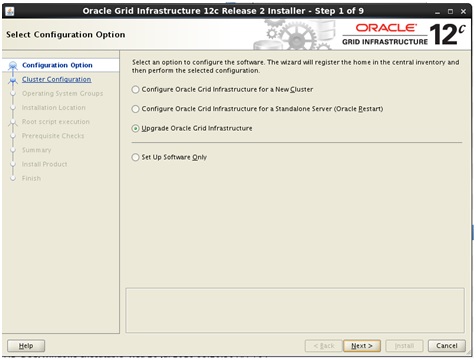
Upgrade Oracle Grid Infrastructure :

Login as grid user

Open a terminal window and change the current directory to the directory where the Oracle Grid Infrastructure installation file was copied.

[root@ggsrv1 ~]# sudo su - grid
[grid@ggsrv1 ~]$ cd Downloads/
[grid@ggsrv1 Downloads]$ ls
[grid@ggsrv1 Downloads]$ linuxx64_12201_grid_home.zip

Unzip the linuxx64_12201_grid_home.zip file to the new Grid home directory.

[grid@ggsrv1 Downloads]$ unzip linuxx64_12201_grid_home.zip -d /u01/app/12.2.0/grid

In the terminal windows, change the current directory to the new Oracle Grid directory.

[grid@ggsrv1 Downloads]$ cd /u01/app/12.2.0/grid
[grid@ggsrv1 grid]$

Set the ORACLE_HOME variable to the new Oracle Grid home directory then run gridSetup.sh


[grid@ggsrv1 grid]$ export ORACLE_HOME=/u01/app/12.2.0/grid
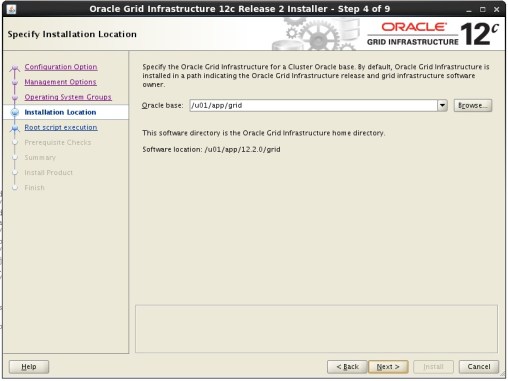
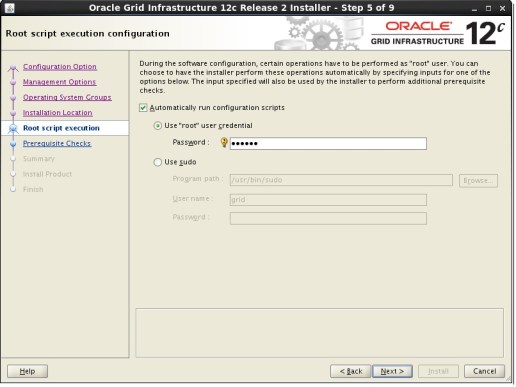
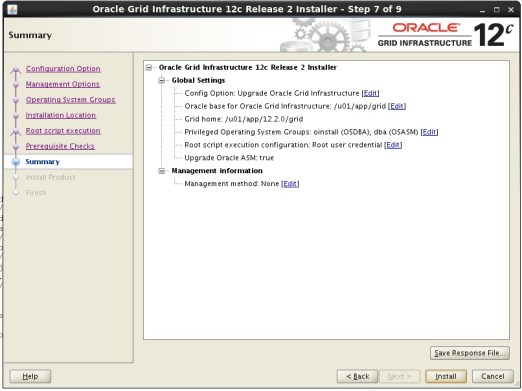
[grid@ggsrv1 grid]$ ./gridSetup.sh

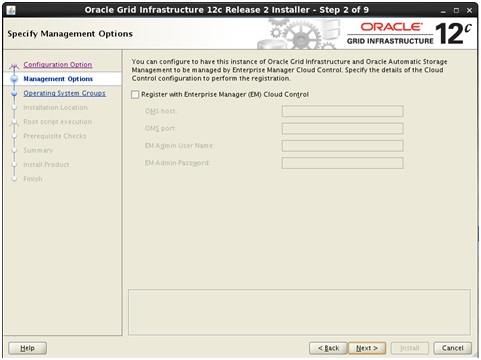
010203

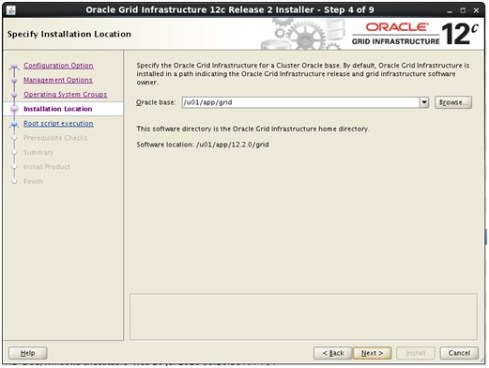
04050607080910

In the Putty window, verify the upgrade has been successfully concluded:

/u01/app/12.2.0/grid/bin/crsctl check cluster -all
/u01/app/12.2.0/grid/bin/crsctl query crs activeversiona
[root@ggsrv1 ~]# sudo su - grid
[grid@ggsrv1 ~]$ cp /u01/app/12.1.0/grid/network/admin/*.ora $ORACLE_HOME/network/admin

Upgrading Oracle Database

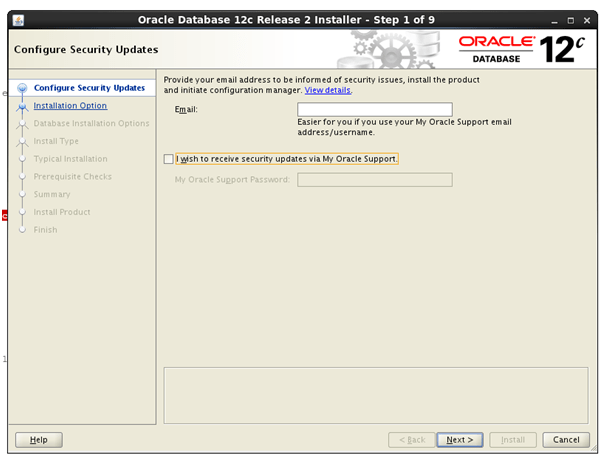
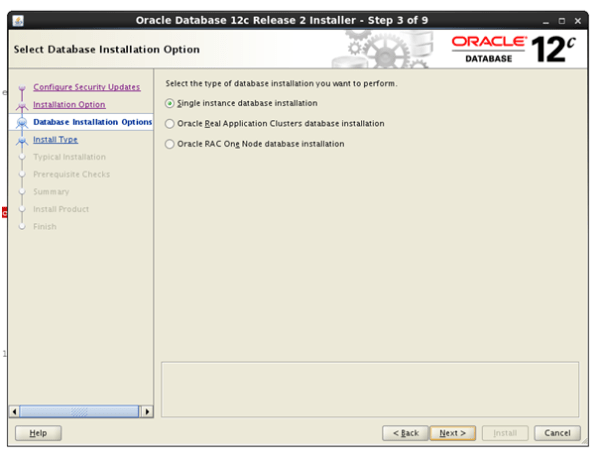
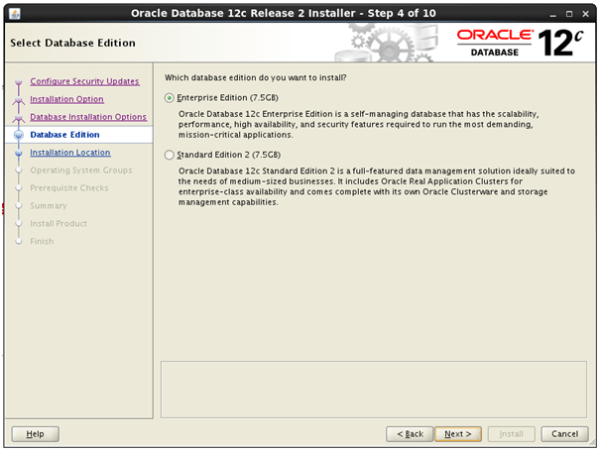
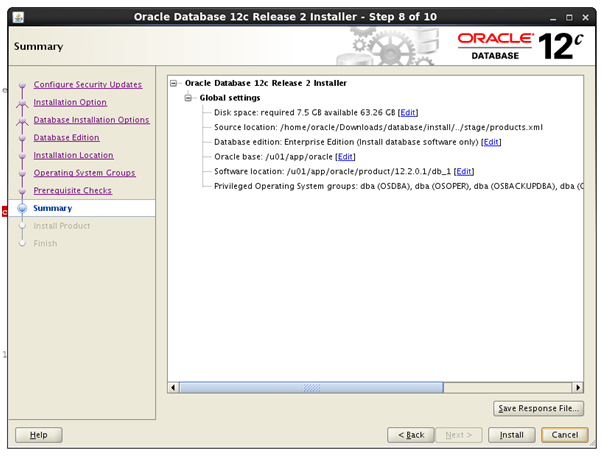
Installing Oracle Database 12.2 Software

cd /media/sf_staging/12.2/database/
mkdir -p /u01/app/oracle/product/12.2.0/db_1
chown oracle:oinstall /u01/app/oracle/product/12.2.0/db_1

050118_0423_Createmulti25.png050118_0423_Createmulti26.png050118_0423_Createmulti27.png050118_0423_Createmulti28.png050118_0423_Createmulti29.png050118_0423_Createmulti30.png050118_0423_Createmulti31.png

In the Putty session, switch the current user to oracle then run the Pre-Upgrade Information Tool (preupgrade.jar) by issuing the following command. This is a single-line command. Make sure you copy it all before you paste it in the Putty window.

/u01/app/oracle/product/12.1.0/db_1/jdk/bin/java -jar /u01/app/oracle/product/12.2.0/db_1/rdbms/admin/preupgrade.jar FILE TEXT DIR /home/oracle/scripts

The command should give the following output:
Preupgrade generated files:

/home/oracle/scripts/preupgrade.log
/home/oracle/scripts/preupgrade_fixups.sql
/home/oracle/scripts/postupgrade_fixups.sql

As sysdba, run the preupgrade_fixups.sql script.

sqlplus / as sysdba
@/home/oracle/scripts/preupgrade_fixups.sql
# to obtain list of invalid objects:
# compile invalid views
SELECT OWNER, OBJECT_NAME FROM DBA_OBJECTS WHERE STATUS='INVALID';
# to obtain list of the materialized views:
SELECT OWNER, OBJECT_NAME FROM DBA_OBJECTS WHERE OBJECT_TYPE LIKE '%MATERIA%'

Gather the optimizer statistics on the dictionary objects. Run the following command as sys user. This is recommended action to reduce the upgrade time.

EXEC DBMS_STATS.GATHER_DICTIONARY_STATS;

Purge the Recycle Bin

PURGE DBA_RECYCLEBIN;

Make sure that the parameter SEC_CASE_SENSITIVE_LOGON is set to TRUE.

SHOW PARAMETER SEC_CASE_SENSITIVE_LOGON

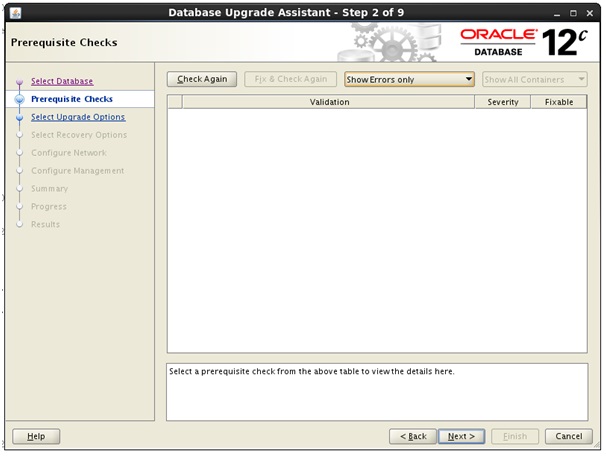
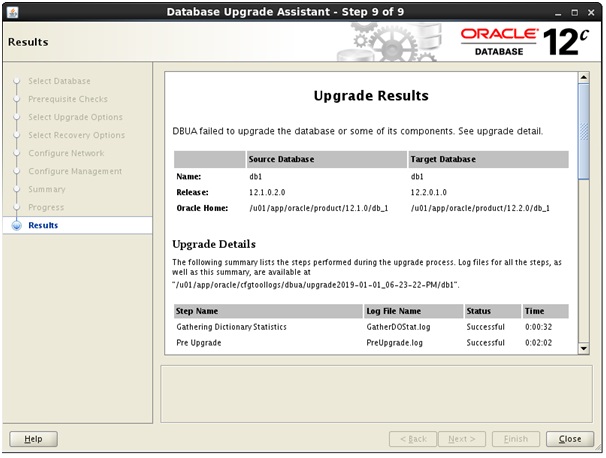
Upgrading Database

Start the dbua utility by issuing the following commands:

export ORACLE_HOME=$ORACLE_BASE/product/12.2.0/db_1
export PATH=$ORACLE_HOME/bin:$PATH
cd $ORACLE_HOME/bin
./dbua

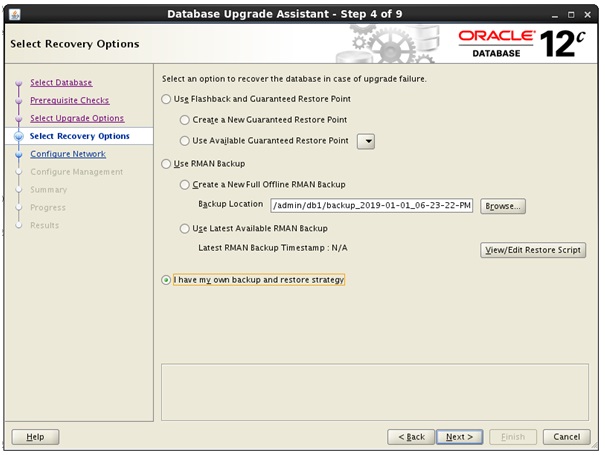
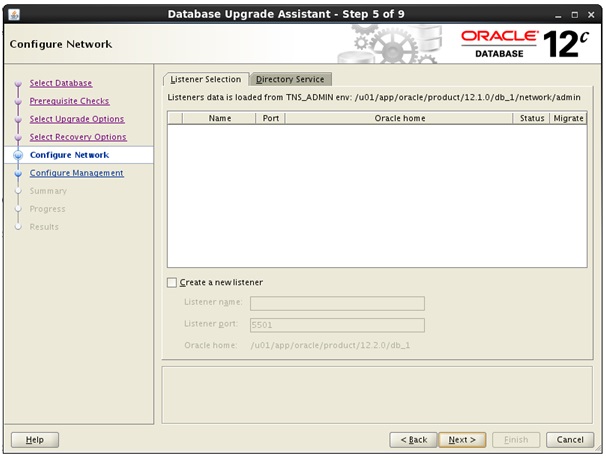
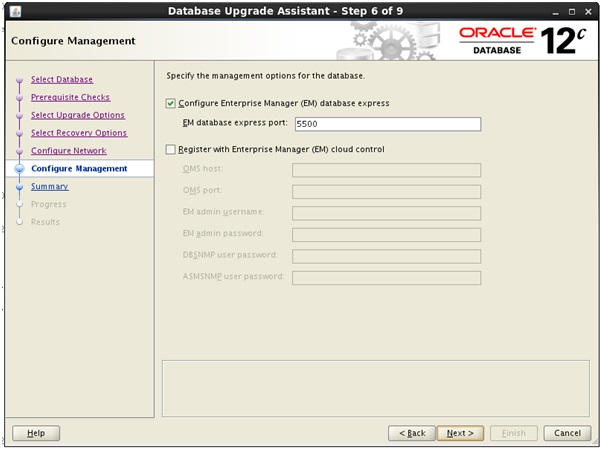
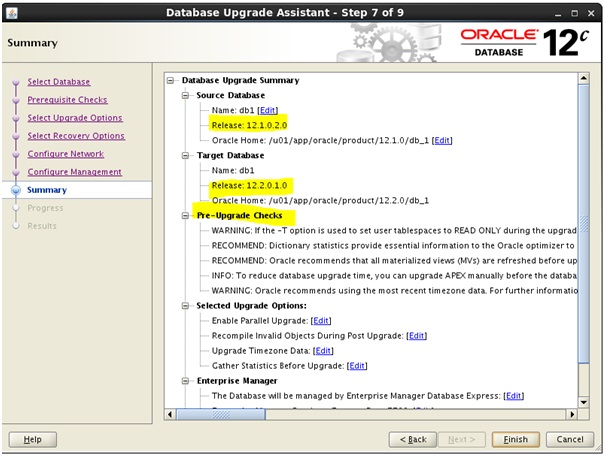
010203040506070809

Post-upgrade Tasks

SQL> select * from v$version;
SQL> set line 200
SQL> select * from v$version;
BANNER                                                                               CON_ID
-------------------------------------------------------------------------------- ----------
Oracle Database 12c Enterprise Edition Release 12.2.0.1.0 - 64bit Production              0
PL/SQL Release 12.2.0.1.0 - Production                                                    0
CORE    12.2.0.1.0      Production                                                                0
TNS for Linux: Version 12.2.0.1.0 - Production                                            0
NLSRTL Version 12.2.0.1.0 - Production                                                    0

In the Putty window, switch current user to oracle and fix the ORACLE_HOME variable setting in .bash_profile.

vi .bash_profile

Copy the tnsnames.ora file from the old Oracle home directory to the upgraded Oracle home directory.

cp /u01/app/oracle/product/12.1.0/db_1/network/admin/*.ora /u01/app/oracle/product/12.2.0/db_1/network/admin

Make sure the current user in the Putty session is oracle then start SQL*Plus and execute the postupgrade_fixups.sql script:

[oracle@ggsrv1 ~]$ sqlplus / as sysdba
SQL*Plus: Release 12.2.0.1.0 Production on Wed Jan 2 00:52:21 2019
Copyright (c) 1982, 2016, Oracle.  All rights reserved.
Connected to:
Oracle Database 12c Enterprise Edition Release 12.2.0.1.0 - 64bit Production

SQL> @/home/oracle/scripts/postupgrade_fixups.sql
SQL> !

[oracle@ggsrv1 ~]$  srvctl status database -d db1
Database is running.

OCM 12c Preparation

Today (19th Dec 2018) I will start my Oracle OCM 12C study project. I will list here the topics and some study guides for each of them, so I can exchange with you who is also applying, interested or have any skills. Please comment in the post related to each topic if you find out any more valuable information to add.

My target is to take the exam by Dec/2019.

Exam dates:
https://education.oracle.com/oracle-database-12c-certified-master-exam/pexam_12cOCM


Hadoop Installation with Single DataNode on Ubuntu (VirtualBox)

Download link!

The above document contains :

01) Updating the Ubuntu repository.
02) Installing openjdk-6-jdk.
03) Installing openssh-server.
04) Downloading and installing Hadoop.
05) Configuring Hadoop enveronment.
07) Create a ssh key.
08) Format the name node
09) Start the namenode, datanode
10) Start the task tracker and job tracker.
11) Checking if Hadoop started correctly.

How to solve the issue caused by a poor estimate of cardinality in SQL Server.

Details:
The table statistics indicate that the tables involved have very few rows, but in reality, the row count is much higher.

Solution:
Updating statistics for the tables involved will improve performance.

Rebuild Table Statistics:

-- Execute the following query to rebuild the statistics held for the 
-- Proseware.Campaign and Proseware.CampaignResponse tables.
ALTER TABLE Proseware.Campaign REBUILD
GO
ALTER TABLE Proseware.CampaignResponse REBUILD;
GO

Lets re-run the query and take the execution plan.

Compare the Execution Plan:

Note that the estimated and actual row counts now match almost exactly. The query will execute faster than it did previously. The execution plan includes a suggestion for an index that would further improve query performance.

Create an Azure SQL Database

This document contains the steps for :
1. Creating a Free Trial Azure Subscription
2. Create an Azure SQL Database.
3. Configure Firewall Rules for your Azure SQL Database Server.
4. Installing and Connecting from a Client Tool
5. Setting up Microsoft Visual Studio.

Create_an_Azure_SQL_Database <download link>

Soft parsing of SQL statements was consuming significant database time.

Every query needs to be parsed before it got executed. If some queries are quite frequently used, a good design will be reuse the parsed query. That means, it will not parse the same query again (provided that we are using bind variables), rather will reuse the existing parsed query and then execute it. In an ideal world, execute should be more than the parse. More parsing requires more CPU.

Ideally when execute is more than parse, the figure will be positive. The ratio goes down if there are more parses than the execute. Then some of the queries are parsed, but less or never executed!.

Causes could be one of the followings:

  • There might be no “Prepared Statement caching” in java layer or in jdbc connection pool.

Solution:

Enable Statement Caching in Java:

// Enable statement caching

((OracleConnection)connection).setStatementCacheSize(x);

((OracleConnection)connection).setImplicitCachingEnabled(true);
  • There might be the case, before the execution of a query, the cursor was closed.
  • There might not be enough “session cached cursors” to hold the queries to reuse.


Fallback if you cannot change the application(java) to use statement caching :

session_cached_cursors = X
  • There might be the case where new queries were coming to play quite frequently.
  • There might be connection interruptions, this need to be investigate from network end.

Below SQL query will help to identify, the SQL’s which is parsed but not executed or less executed:

set linesize 200;
set pagesize 1000;
col sql_text format a40;
SELECT sq.sql_text, st.executions_total, st.parse_calls_total
, round( 100*(1-( st.parse_calls_total / st.executions_total )),2) execute_to_parse
, st.executions_delta, st.parse_calls_delta
, round( 100*(1-( st.parse_calls_delta / st.executions_delta )),2) delta_ratio
FROM DBA_HIST_SQLSTAT st
, DBA_HIST_SQLTEXT sq
, DBA_HIST_SNAPSHOT s
WHERE s.snap_id = st.snap_id
AND s.begin_interval_time >= to_date('2018-10-19 01:00 pm','YYYY-MM-DD HH:MI pm')
AND s.end_interval_time <= to_date('2018-10-19 03:00 pm','YYYY-MM-DD HH:MI pm') AND st.sql_id = sq.sql_id AND st.parsing_schema_name='<schema_owner>' AND st.executions_total !=0 AND st.executions_delta !=0 ORDER BY delta_ratio;